
Radxa Linkr - Reviewed on Linux: An affordable and featureful IP KVM Device
So this time this is going to be a different kind of hardware review. Not a keyboard. Not gaming handheld. Not a powerful ARM64 SBC that can game. Today, it’s about the Radxa Linkr, which appears just like a regular HDMI adapter, with a few usb-c ports, one on the side and one at the back. In technical terms, it’s what we call an IP KVM remote control device. Radxa is not unique in that space, but the Linkr is very affordable device considering what it can do. It’s also possible to build you own, if you want to go down that route. And commercially you can also find JetKVM, albeit more pricey. The Radxa Linkr sits just in between: affordable, and featureful, while being plug’n play.
To make it easier to understand what a IP KVM remote control is, it’s a device that can connect to the HDMI port of one of your devices, connect to internet, and stream the video output over the network so that you can visually see what is happening from a different computer.
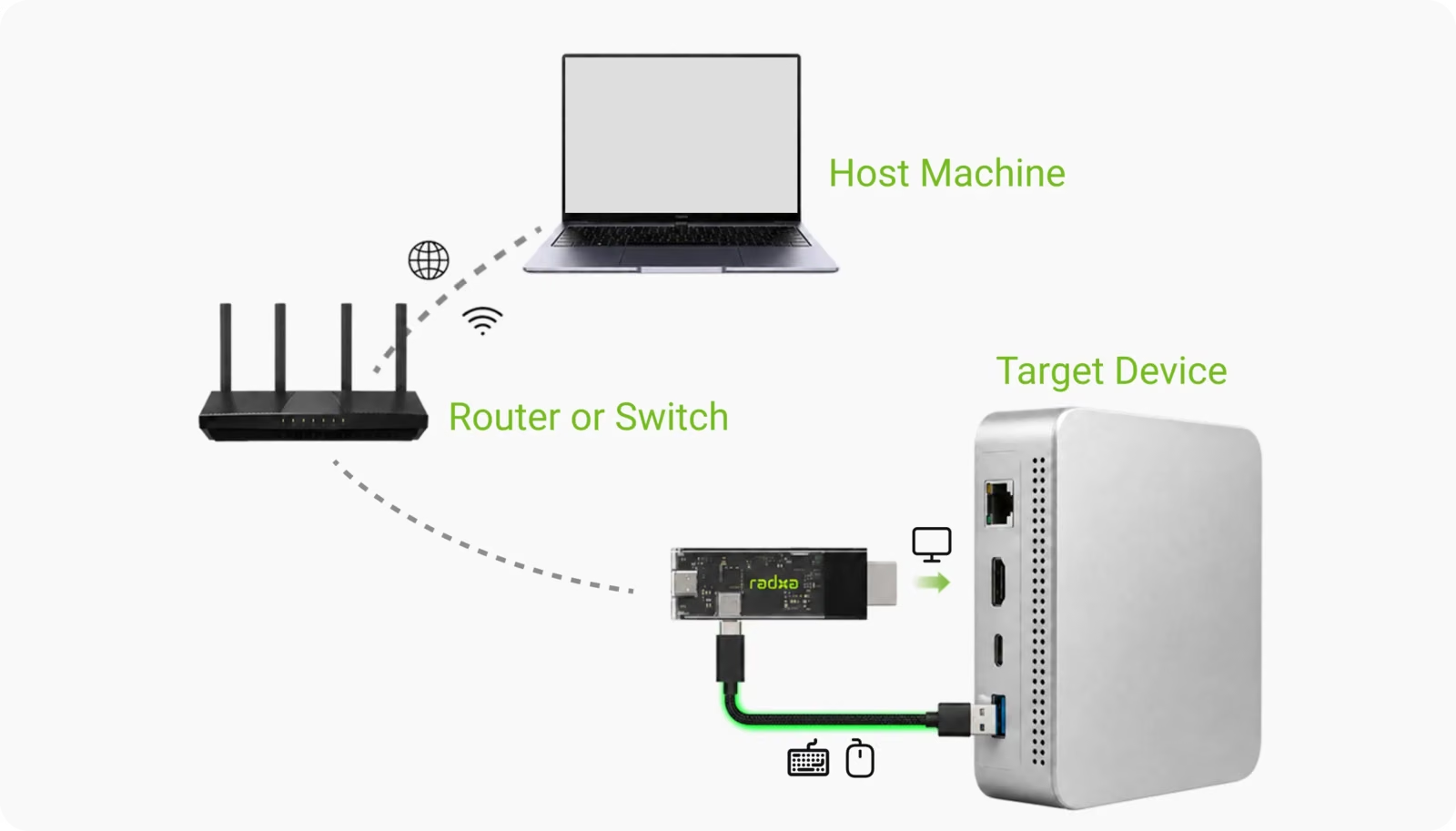
It’s not just a simple streaming device, though. Because it has two USB-C ports, it can do something fairly interesting:
- It can stay on even when the device it’s connected to is off.
- One of the USB-C ports connects to one of the USB ports of the target machine, so it can directly transmit mouse and keyboard action from another device on your network, so that you can actively take control over that machine.
And the point of having the machine use a different power source is to make it possible to wake the target device up. Which is very cool if you have a server in the basement, and you don’t want to go downstairs and connect it to a screen to change something on it.
The other massive advantage of this device is that you can control the target device from the BIOS stage as well! Since the device has video, mouse and keyboard connectivity, you can reboot the machine remotely, change the BIOS settings, save them and reboot the machine again all thanks to this little device. So this goes way beyond what you can do with SSH for example.
Specs
Here are the detailed specs of the machine.
| Spec | Details |
|---|---|
| Display Input | HDMI up to 2K @ 30 Hz |
| Video Streaming | H.264, MJPEG; H.264 over WebRTC/WebSocket; MJPEG over WebSocket |
| Network | USB-C network port; built-in Wi-Fi client/hotspot |
| USB-C Networking | Direct PC or Type-C to RJ45 10/100 Mbps adapter with power input |
| USB Device Port | 1x USB-C for keyboard/mouse emulation and power input |
| Storage | Optional 16 GB eMMC or microSD card slot |
| Buttons | 1x user button |
| LEDs | Video status LED, system status LED |
| Power Input | USB-C 5 V / 2 A |
| Dimensions | 70 x 22 x 12 mm |
Now if you are curious about the actual internals that make this little machine work well, this is what CNX Software review found after doing a teardown:
- SoC is Rockchip RV1106G3: CPU is Arm Cortex-A7 @ 1.2GHz with integrated RISC-V co-processor. NPU is 1 TOPS 4th-gen Rockchip NPU with int4/int8/int16 hybrid quantization. ISP is 3rd-gen 5MP high-performance ISP. VPU encodes 3072×1728 @30fps H.265/H.264, JPEG snapshot 16MP @60FPS.
- System memory is 256MB DDR3L on-chip.
- Wi-Fi module is AIC8800 Wi-Fi 6.
- USB-to-Ethernet chip is RealTek RTL8152B.
- eMMC flash option is TLI TLIFE50AMSH3-MRE 16GB.
- HDMI-to-MIPI CSI bridge is Rockchip RK682F.
In the small box you get:
- Radxa Linkr
- Quick Start Guide
- USB-A to USB-C cable
- USB-C to USB-C cable
- USB-C power/data splitter cable
- USB-C to RJ45 cable
Which is basically everything you need to use this device.
In terms of OS support this is what you get:
- Host OS support: Windows, macOS, iOS, Linux, HarmonyOS, Android.
- Target OS support: Windows, macOS, Linux, HarmonyOS.
And here is some explanation as to how the device is designed:
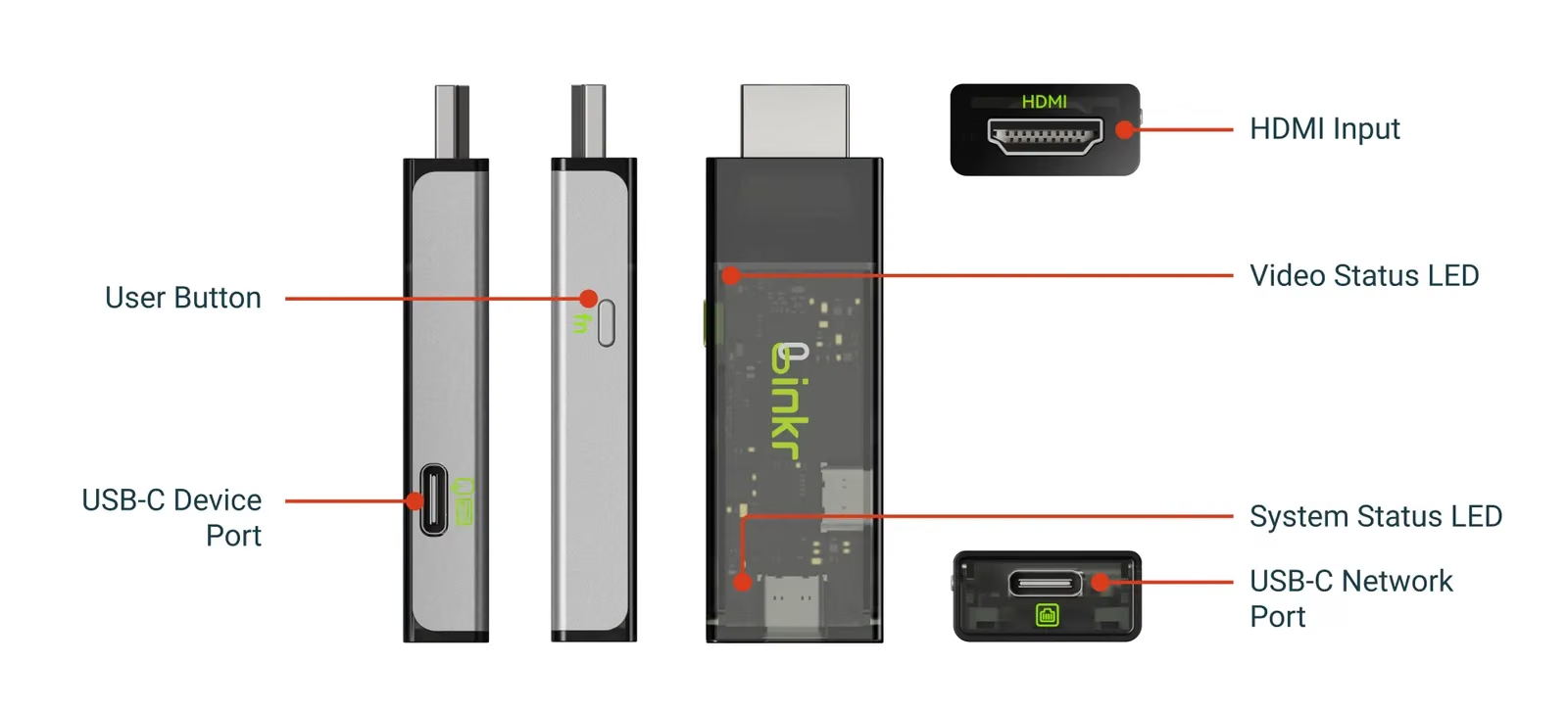
All in all, very small.
Software Support on Linux
First Steps
The first setup is a little tricky. At least in my case.
Typically you will have to set it up first using a direction connection to your host device. So you plug the HDMI on your target device and on the other end, to your host PC. Once connected to the host PC it gets assigned a local IP that can be accessed from your host.
Ultimately, you should be able to detect your linkr and start configuring it by using the linkr.now website which is actually a self-contained web application made to interact with your local network.
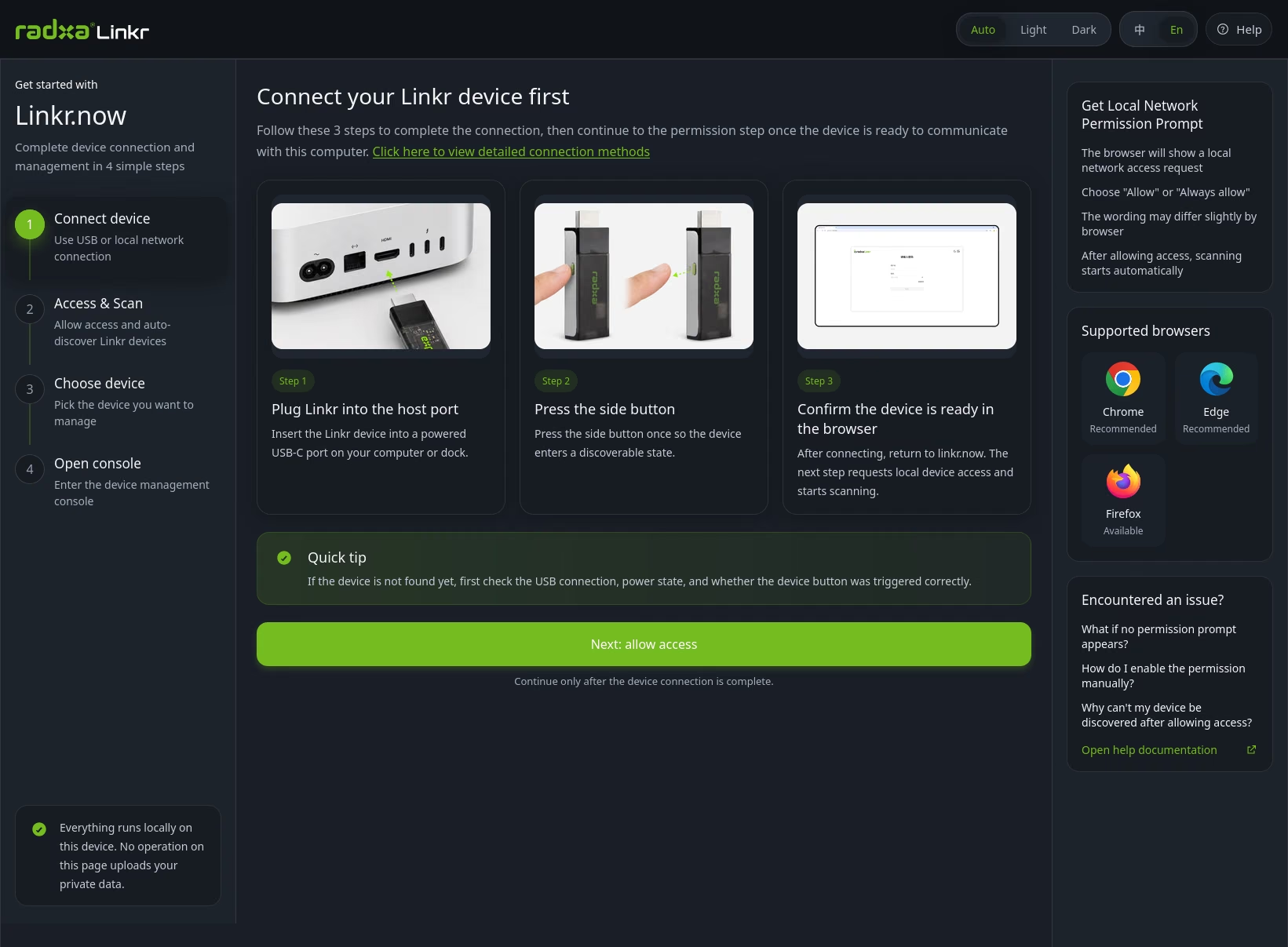
Sadly, probably because my network setup may not be as typical as your regular John Doe, this application did not work. It did not detect my Linkr device.
No matter, a simple network diagnostic told me the IP used by its network adapter, and then just replace the last number by 1 and you get to access the web interface of Linkr. During the first connection you create your account and a password in order to protect the access to the stream and the target device. Once it’s done, you will use such credentials to connect afterwards.
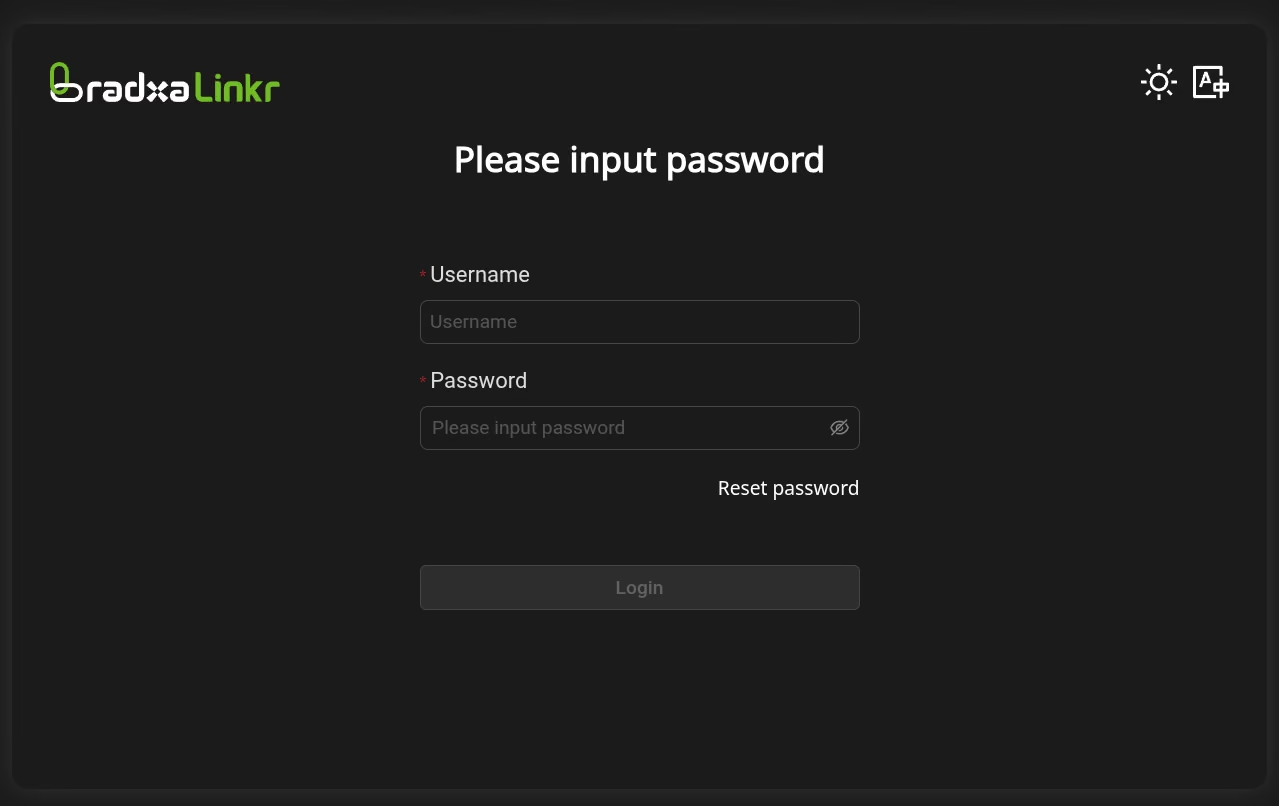
Once you are in, you can see the target machine’s screen and access a bunch of options from the web interface.
What the Linkr offers
In this below video you can have a quick overview of all the options available to operate the Linkr remotely.
The list of features is very long, but the ones that are fairly noteworthy are:
- Public APIs, access tokens
- screen capture JPEG, Video, directly from the browser
- keyboard/mouse commands such as sending custom shortcuts directly.
- Screen keyboard,
- Scaling mode: you can change the resolution of the target device’s screen on the fly
- Wake-on-LAN Magic Packet support, to wake a device that’s in standby or hibernating.
- Tailscale support to be able to stream and access your target device outside of your home. Imagine you have a deal with a server issue while away from home. Tailscale will make it possible to do it remotely, from a galaxy far, far away.
One thing that is very cool is that this device can also act as virtual disk ISO/IMG USB drive. So you can have a backup OS installed on this device as an image and use it to image machines directly remotely without having to insert a different USB drive to install a Linux distro, for example.
Updates
You can do OTA updates on this device.
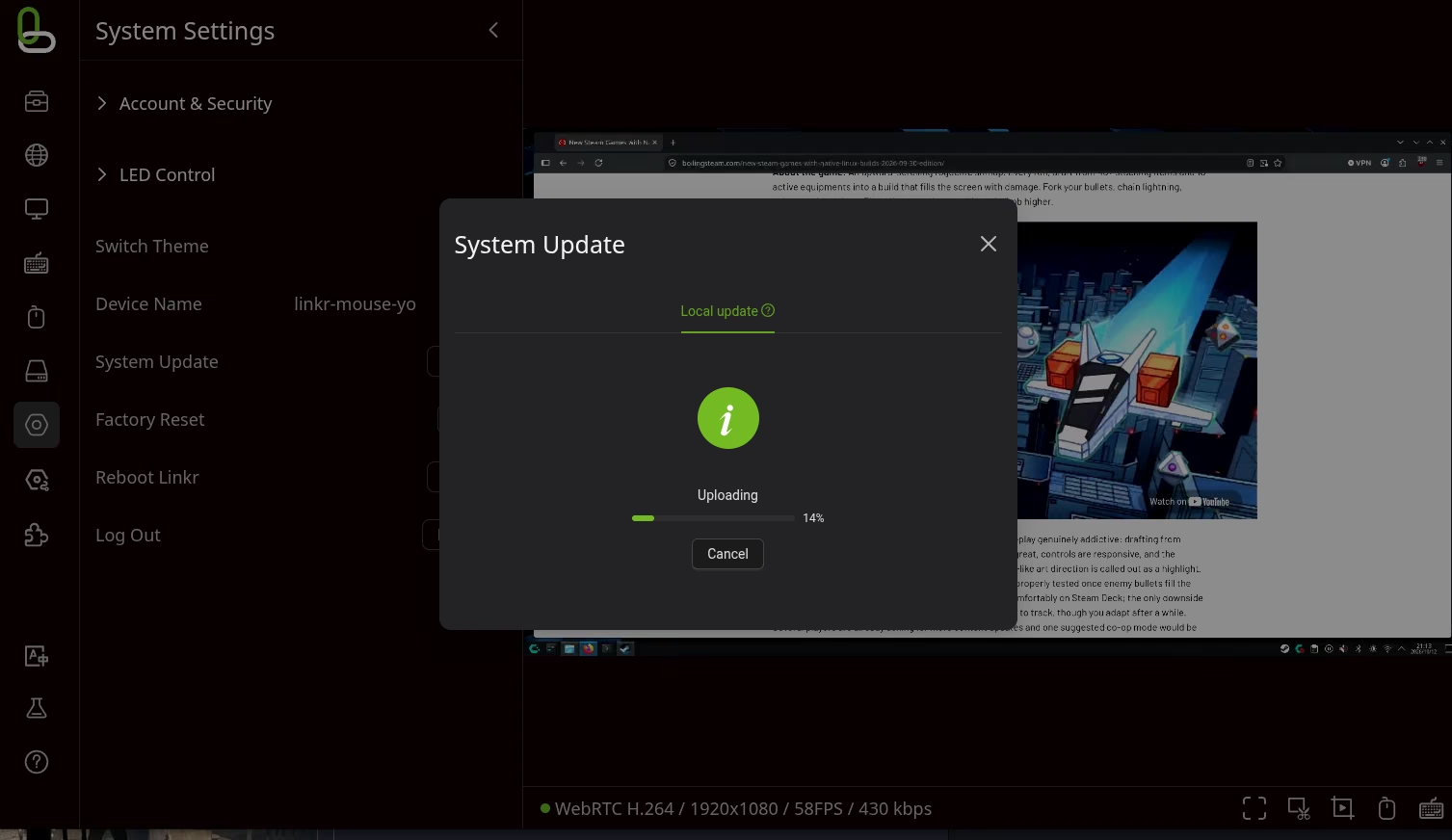
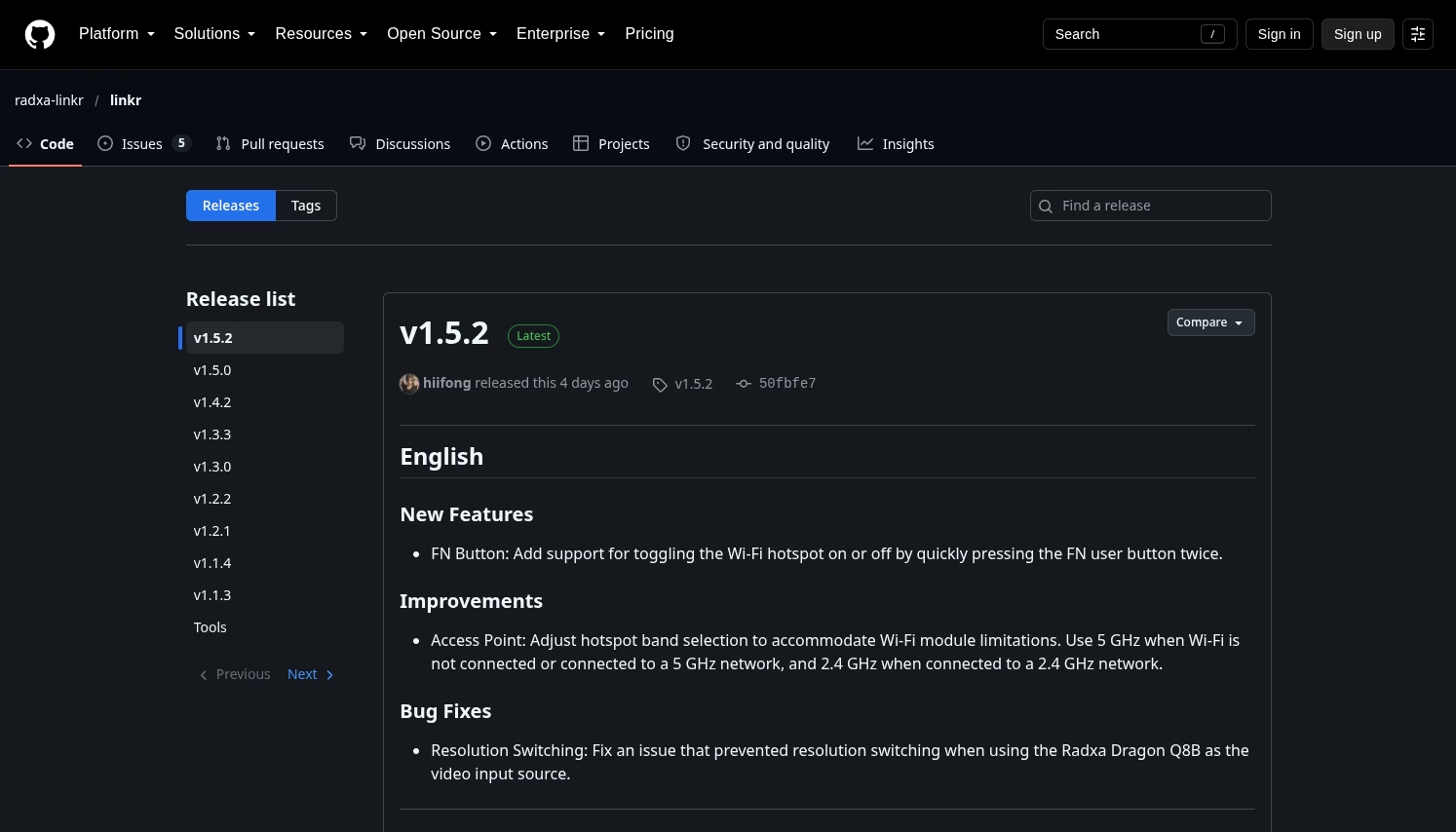
It’s not completely automated. You have to go on the github page, get the latest OTA update file (usually not very large), download it on your computer and then drag and drop the file onto the OTA update menu. Then you will see a progress indicator, which will invite you to reboot at the end. Very smooth and clean. I wonder why they did not implement an automated OTA update process for when the device is actively connected to the internet, but maybe that will come at some point.
The device is getting a lot of updates and bug fixes from Radxa since it was released. This is really heartwarming to see a company being so reactive. They also have been adding some very important features such as remote audio just last month.
Remote audio has some limitation. The audio is not very clear, somewhat muffled. So there’s that. It’s useful to get some audio signal, not for listening to classical music.
Gaming Cloud
This may sound completely out of scope for this kind of device, but you can actually use it to game from the target device via streaming! It’s not really made for that since gamepad remote control is not supported, but you can play with mouse and keyboard, and as long as your connection (either LAN or Wifi) is fast enough, you can actually game through this.
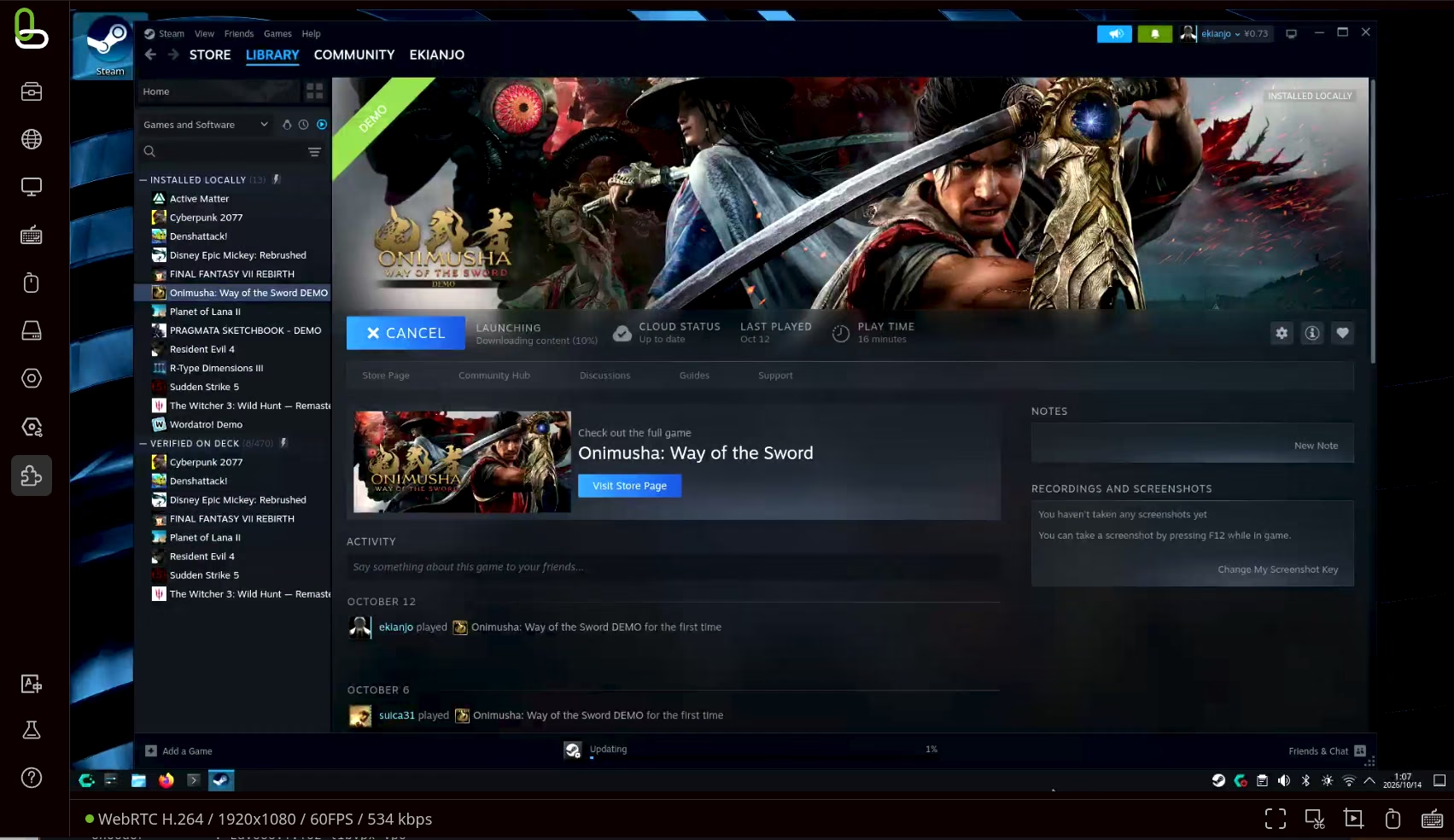
Bear with me, this is not going to replace GeForce NOW, but if you want to take a quick and dirty video of a game running on a different piece of hardware, without having to reconnect a bunch of cables, this is very, very practical.
Here is a quick demonstration of me playing Onimusha on my target machine from my host machine. Works well enough at 60 fps in case. you can adjust the quality to lower settings if you want to minimize latency and ensure a fluid stream as well.
When playing a game, by the way, you want to change the mouse setting from “absolute” to “relative” so that you can use the mouse to change the camera viewpoint.
More plugins
As if this were not enough, Linkr also has a plugin repository that lets you install a few more services, optionally. Right now there is not a lot of things to see, but they have things like zero-tier and easytier plugins (decentralized mesh VPN with WireGuard support). This also means that there is probably a way to develop your own plugins and install them on this device.
Experience
I really like the Radxa Linkr. I had seen devices in the same category before, without playing too much with them, but what strikes me the most with the Linkr is that it’s feature-packed for a quite affordable price. Of course, on Linux, if all you care about is headless servers, this device will not really be of any use to you. A regular SSH connection will do just fine. If you do, however, have to manage hardware and different machines running a desktop environmenet, this kind of device is a life-safer. It can really make testing across different configurations actually seamless and save a lot of time.
While I encountered some issues to use the provided Linkr.now webapp to detect the device, any intermediate Linux user will easily manage to find out the IP necessary to access the device without out, so it’s almost a non-brainer.
The streamning performance is very good, and you can easily hit 60 fps on any regular connection at home. The only thing that makes me worry a little is that this little device can get pretty hot. It’s probably OK, but I can’t help but worrying about hardware that overheats. It’s a tiny package with not a lot of surface to be able to dissipate heat, so this is definitely a heat trap. If you store this with your server, underground alongside your wine cellar, you probbaly don’t have to worry about it.
Pricing
Prices are volatile these days, but at the time of writing, the hardware goes for 65 USD on Aliexpress, and 86 USD on Amazon.com. This price is really attractive, almost a no brainer if you have multiple machines to manage and don’t want to drown in cables and adapters.
Useful links
- Product page: Radxa Linkr
- Product brief PDF: radxa_linkr_product_brief.pdf
Note: we have received a sample device from Radxa for this review.