
Epomaker Glyph Keyboard Review. Typewriters are Back!
During the Tokyo Games Show 2026 we went around quite a bit in the hardware section and this time we had a good look at keyboard and peripherals. EPOMAKER had a huge booth in the second hall and something caught my eye immediately when I went there: the Glyph keyboard.
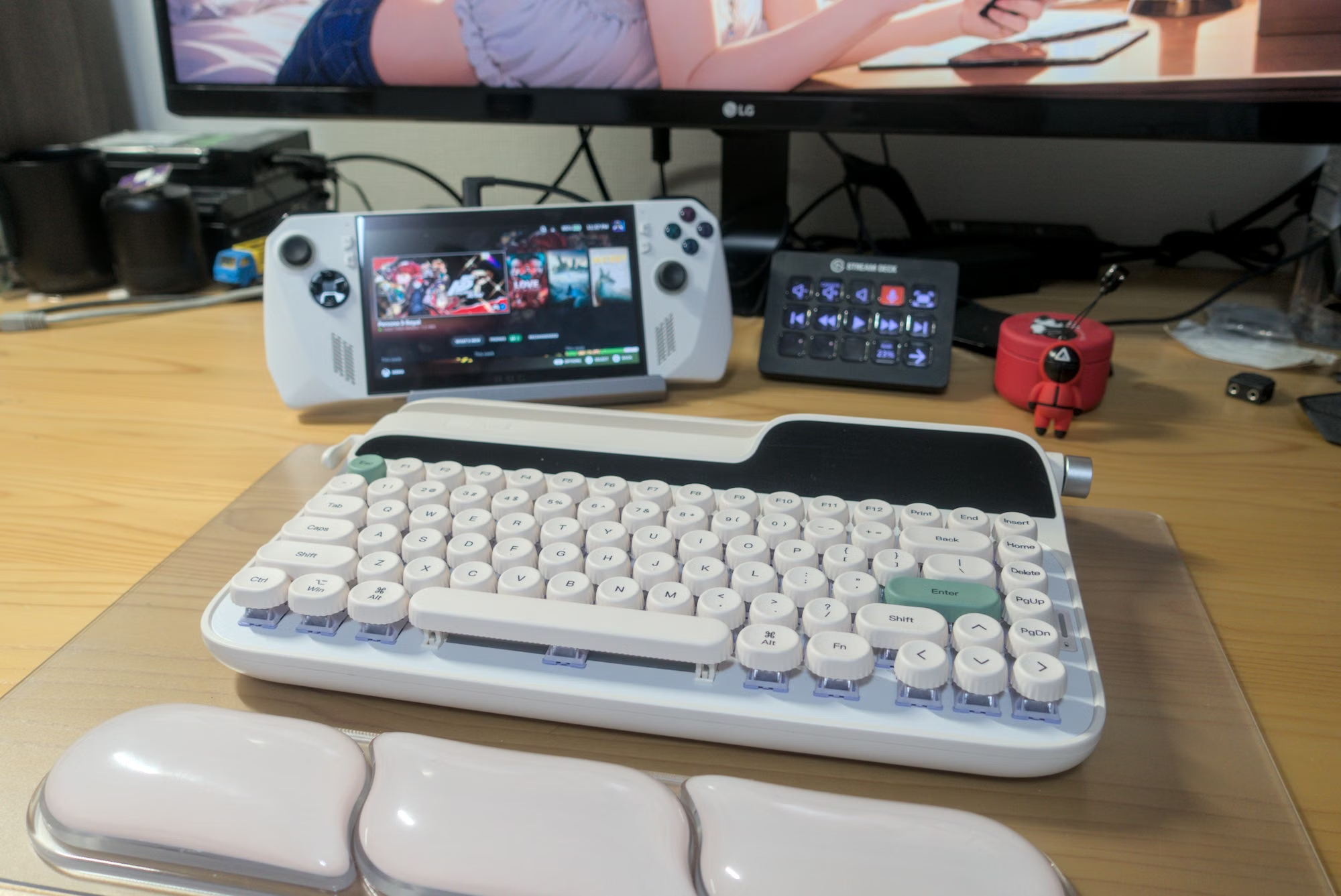
Most mechanical keyboards tend to look barebones and squarish: straight lines, brutalist-like designs, more like bricks with keys on them than anything else. Glyph looks so different because it reminds you of typewriters of old: curvy, with round keys, and an elegant appearance. I must admit, I fell in love with its appearance right from the start. But is it a good keyboard for a daily usage? EPOMAKER was able to provide us with a test unit, so I can now answer this after a long hands-on period. And of course, we will also confirm how well it works on Linux.
Specs
First let’s have a look in details at the spec of the keyboard.
| Specification Category | Details |
|---|---|
| Model | EPOMAKER Glyph |
| Layout & Keys | 75% ANSI US Layout (83 Keys) |
| Mounting Style | Top-Mount |
| Plate Material | Hybrid ABS & Aluminum Plate |
| Case Material | ABS Plastic |
| Keycaps | Non-sculpted uniform height spherical PBT keycaps (Dye-sublimated) |
| Switches | EPOMAKER Wisteria V2 Linear (5-pin, Factory-lubed) |
| Hot-Swappable | Yes (Compatible with 3-pin and 5-pin mechanical switches) |
| Display & Controls | 2.79-inch TFT Smart Screen, dual-mode Rotary Knob, and Carriage Return Lever (Toggle up for Enter, Press down for Backspace) |
| Connectivity | Tri-Mode (2.4GHz Wireless, Bluetooth 5.0, USB-C Wired) |
| Battery Capacity | 8000mAh Rechargeable Battery |
| Lighting | Per-key south-facing RGB LEDs with light diffusers |
| Acoustic Dampening | 5-Layer Stack (Noise-absorbing foam, IXPE switch pad, PET sound pad, switch socket pad, bottom silicone) |
| Dimensions | 347 mm × 207 mm × 57 mm |
| Front / Back Height | Front: 21 mm / Back: 57 mm |
| Weight | ~1,178.8 g |
| Typing Incline | 2-stage adjustable (1° and 2°) |
| OS Compatibility | Windows, macOS, Android, iOS officially supported |
| Included Accessories | Color-matched silicone wrist rest, USB A-to-C cable, 2.4GHz dongle, 2-in-1 switch/keycap puller, extra switches |
Design and Build Quality
Overall keyboard design
The unit itself is not too heavy but has no problem resting firmly on the table. The chassis is very rigid and there is no risk of flexing here, this is built like a brick, while a brick with rounded corners and a soft appearance. The outer shell is made of plastic, but not the kind that feels cheap. One of the main worries I have regarding the shell is the risk of yellowing over time, something that happens fairly frequenly on any kind of white plastic shell.
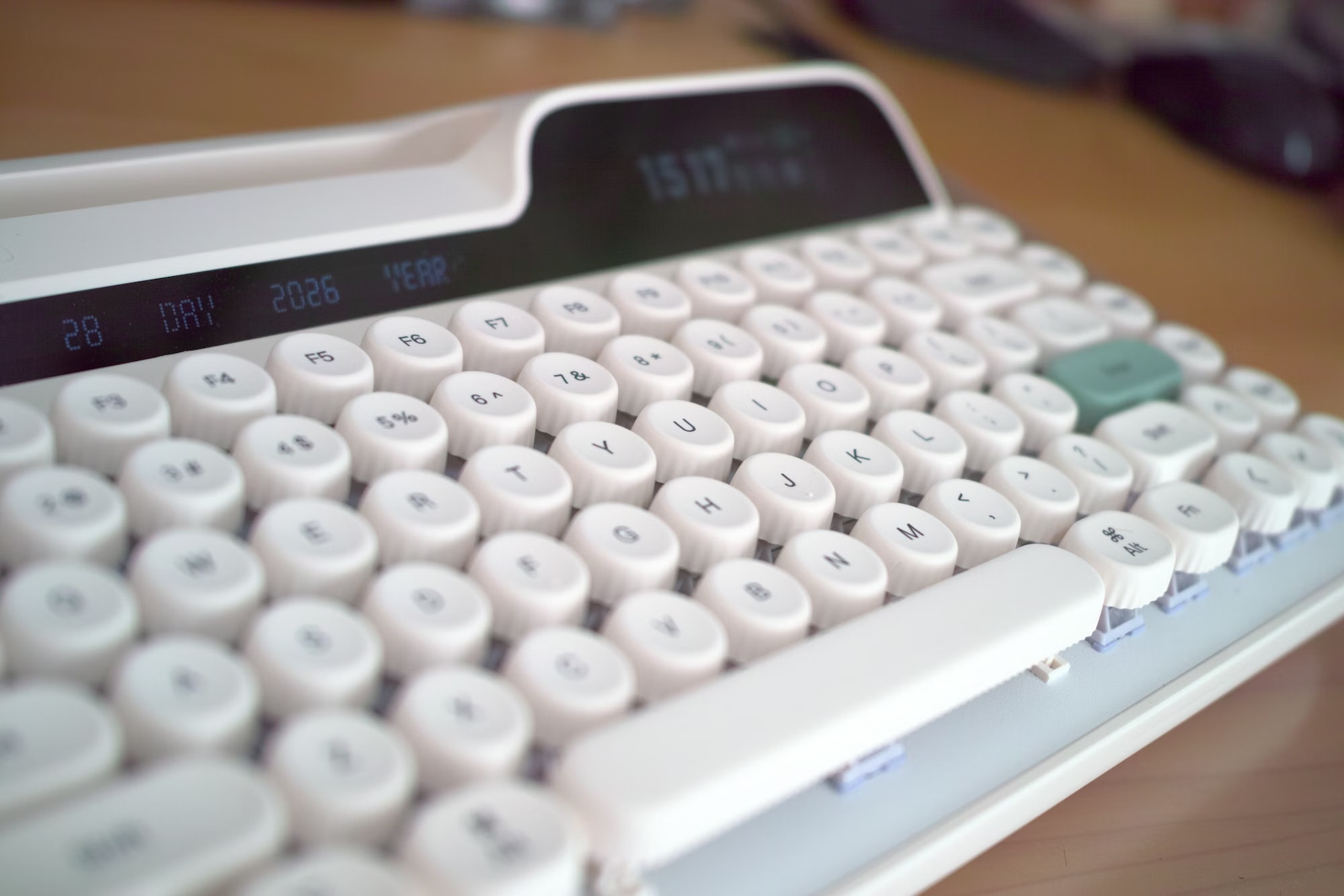
There is slot / recess at the back of the keyboard that is apparently used to put your phone or your tablet upright in case you want to use it with your keyboard, since you can then connect in bluetooth with it. I am not entirely conviced this is a good design for that: first, you can’t really adjust the inclination of the tablet or the phone, so it feels a little awkward. On top of that, with a tablet, your screen would be pushed to one side instead of being centered around the middle of your keyboard.
But since it’s some space you can use, I think you can actually use it in another way, such as putting a pen in there! I have a drawing tablet next to my computer and its pressure pen fits very nicely in it. Worse case, you can completely ignore that. It does not look weird.
Connectivity
It has three modes of operations:
- Wired, with a provided USB A to micro-USB cable.
- Bluetooth
- 2.4 Ghz wireless mode, with its own dongle which is well hidden behind its back (very elegant). It will take an extra USB port but this is going to be better than Bluetooth, latency wise.
You can decide which mode to use by using a switch at the back of the keyboard.
With thee 2.4 Ghz dongle I tried walking around while typing and I could get to 8~9 meters away (with walls in between) before the signal dropped. So you can be fairly far away from your screen. When the signal drops there is a green blinking light showing up in the middle of the keyboard, to let you know what is happening.
With bluetooth, you can go even further than with 2.4 Ghz. I went to the lower floor on my place and I still had a live connection before it dropped. When it does it shows you a blue blinking light on the side of the keyboard. Good design.
Ideally you will want to use the wired mode if you don’t mind it having a wire going around, as this will have the lowest amount of latency, but the other modes work well too. I don’t recommend bluetooth because it shares the bandwith with other connected devices so it’s a little less reliable if you are on a desktop. Bluetooth may however be the only option if you use it with your mobile devices or tablets.
Once thing about the 2.4 Ghz mode, I noticed there is a litle lag when you want to wake up the keyboard from sleep (maybe a couple of seconds) so you need to wait a little to make it come alive before typing again. Not a dealbreaker, but if you were used to typing your password directly after returning from sleep, this will require getting used to it. Just hit it once, wait for a second, and start typing as the screen wakes up.
Layout & General Ergonomics
It is an 75 % US ANSI layout, which means you don’t get a number pad on the side. This is good if you dont have a large table and if you don’t really have a use for a numpad at all times. People used to do data entry a lot when most computers were made for office work, but these days more casual use means that keyboards come in various sizes and shapes. Also the Glyph mimicking what you had on typewriters, it makes sense for it to be rather compact.
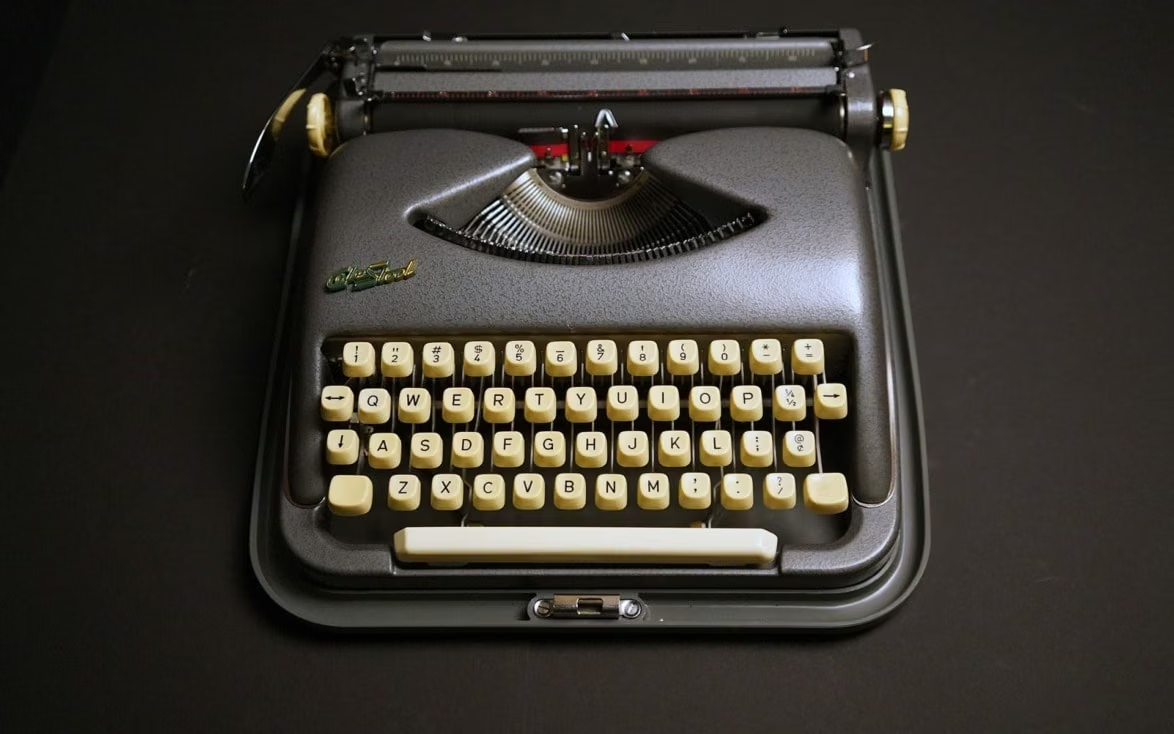
A side note, but if you have never seen a typewriter in action, this is still impressive to this day the amount of engineering that went into creating well functioning typewriters that could last for years. Most of younger folks have never come across one these days and they belong to museums, but there is some beauty in having a 100% mechanical system being mostly flawless (yes, I am aware they mangled paper sometimes, and that keys got stuck, etc… still, my point stands).
The spacebar is very wide, and it is very comfortable to use as it is supported on both side by two additional springs that make the spacebar stay completely stable when being pressed, whether it’s on the side or the center.
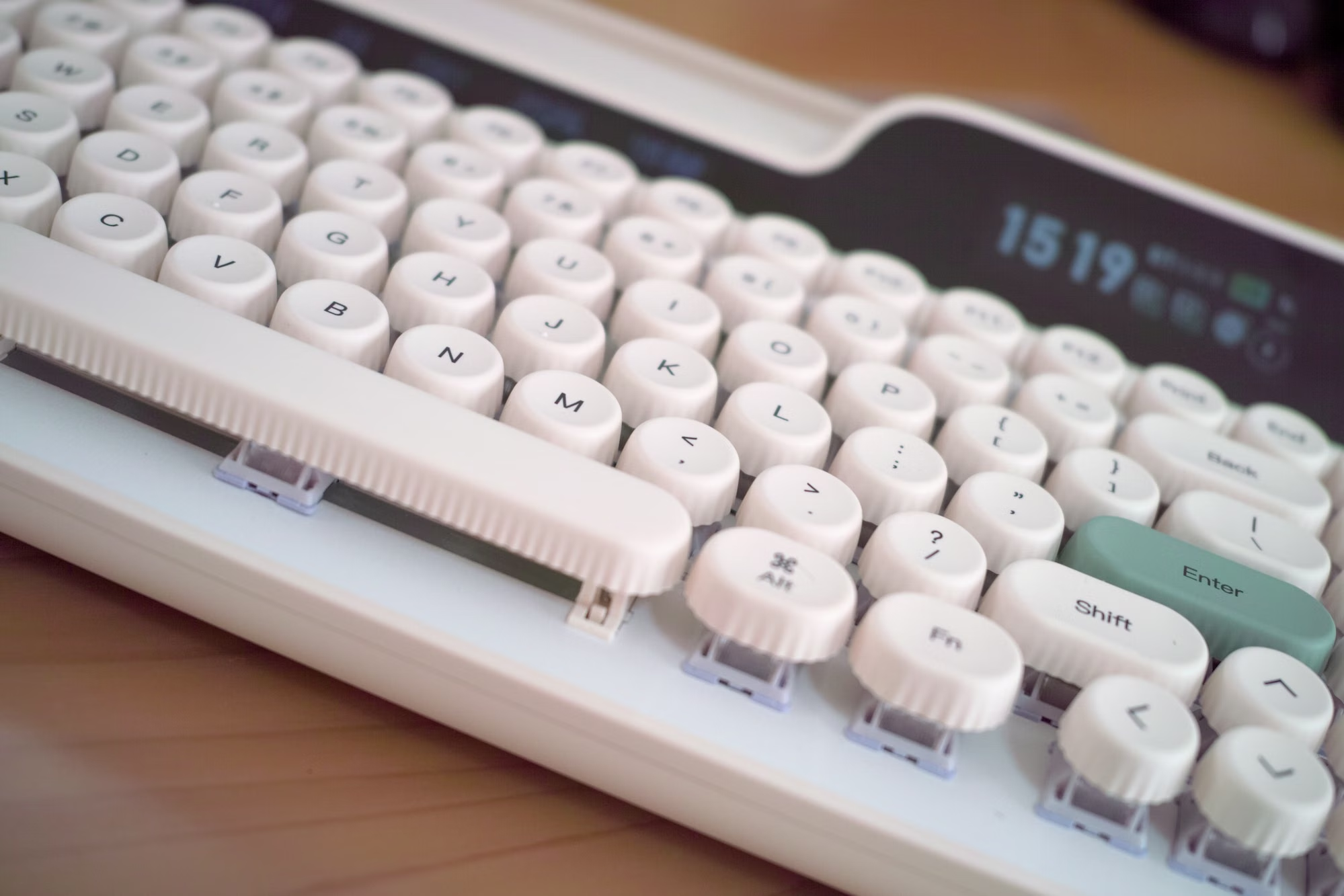
I took a while to get used to the position of the enter key, since it’s different from most of the keyboards I have been using until now, where the Enter key is vertical and not horizontal. But it’s not a big deal after a few hours on the keyboard.
The keyboard has a certain height to it, because of the size of the chassis in the first place, so when you type on a table your wrists may be either in the air or resting at an uncomfortable angle unless you use the provided palm rest. You also cannot chance the inclination of the keyboard much: there is a slight adjuster below the back of the chassis but it’s not going to make much of a difference: it sits fairly flat.
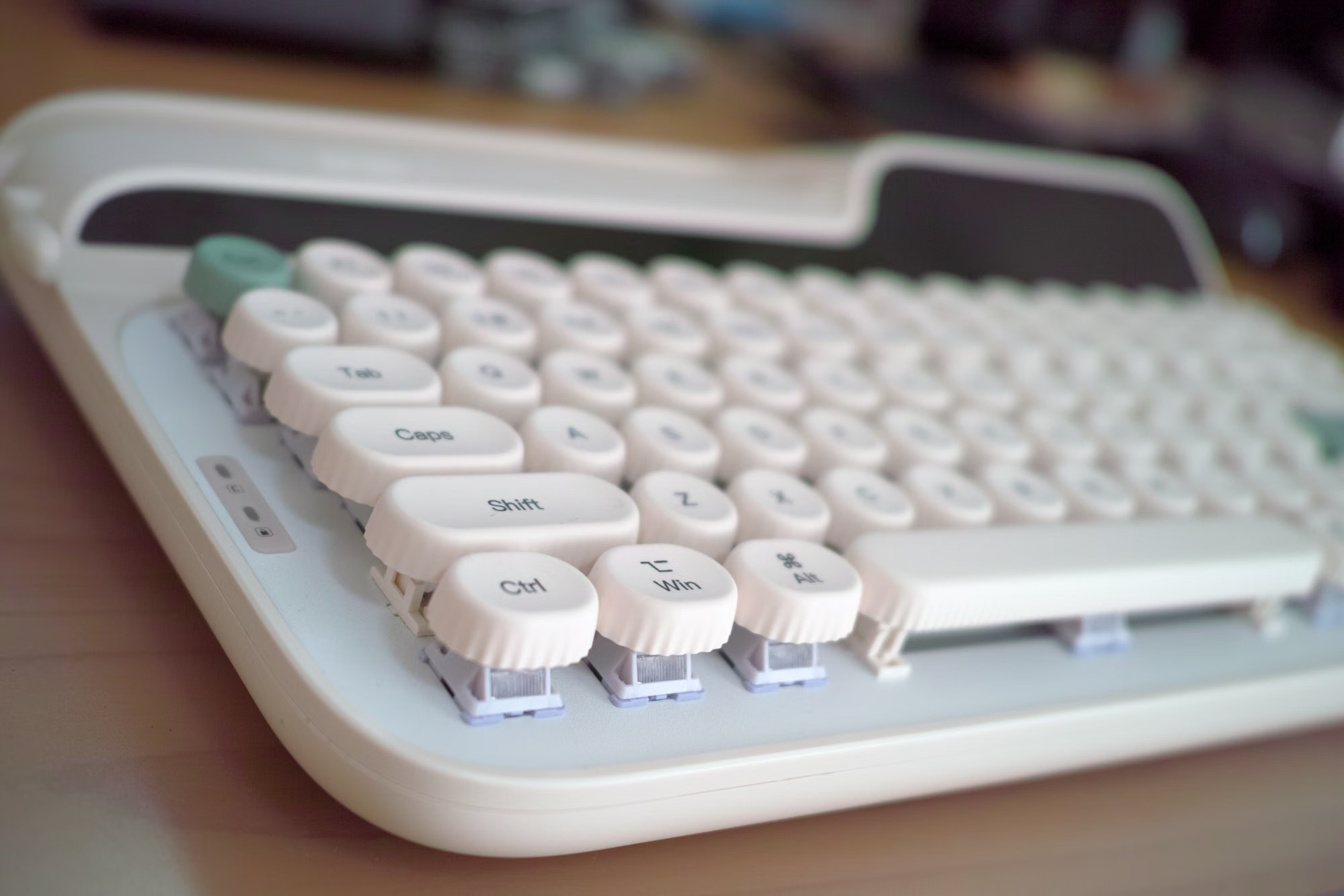
Since the keys are sitting fairly elevated, one of the key advantages here is that it’s super easy to clean. You don’t even have to remove keycaps to do a basic sweep. Just blowing through your keyboard will get rid or most dust and particles.
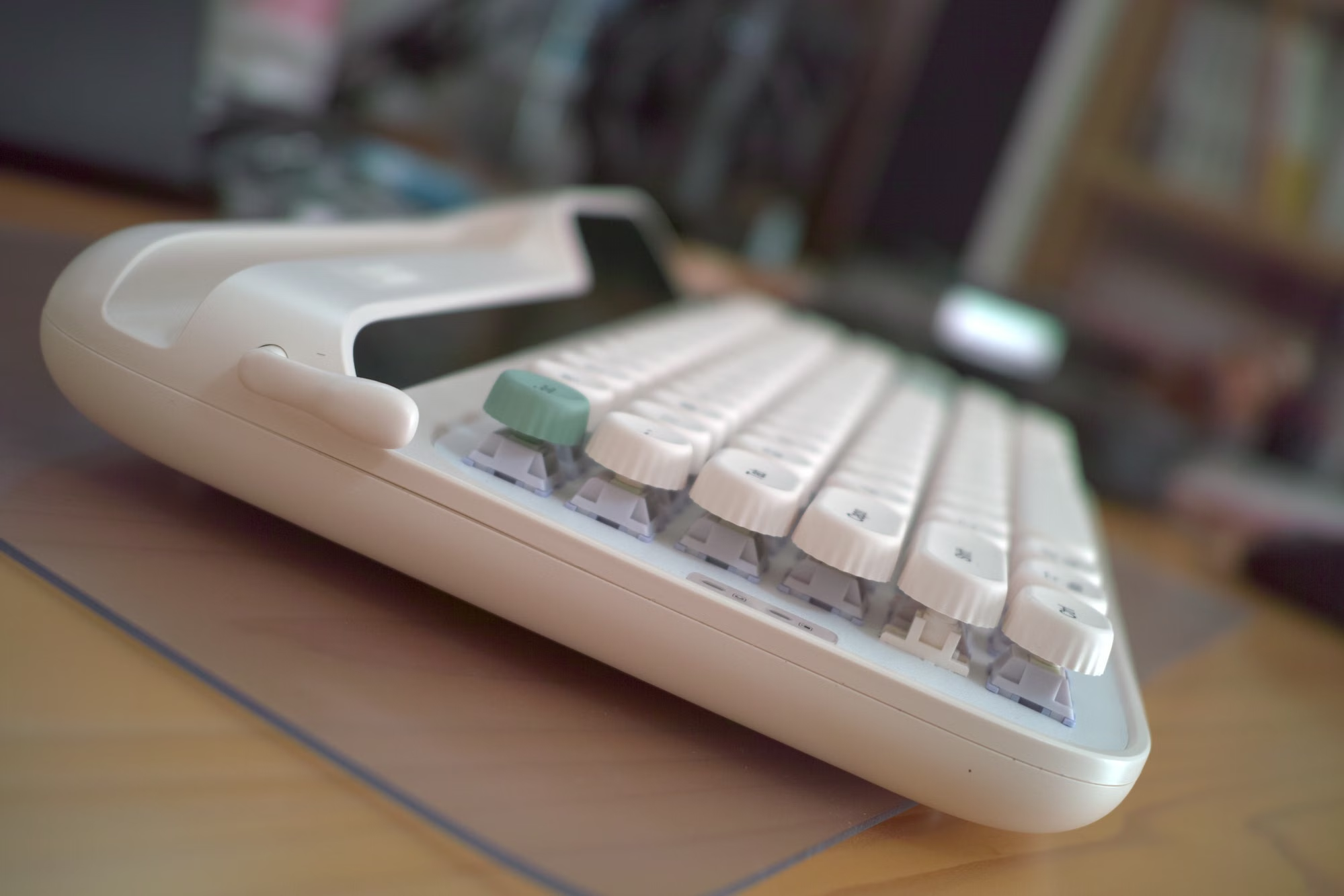
Very easy to maintain in that sense.
Keycaps
The keycaps are fairly unusual for mechanical keyboards. They are not squarish, and they have a little bit of depth (henre the spherical description) and they are made of PBT.
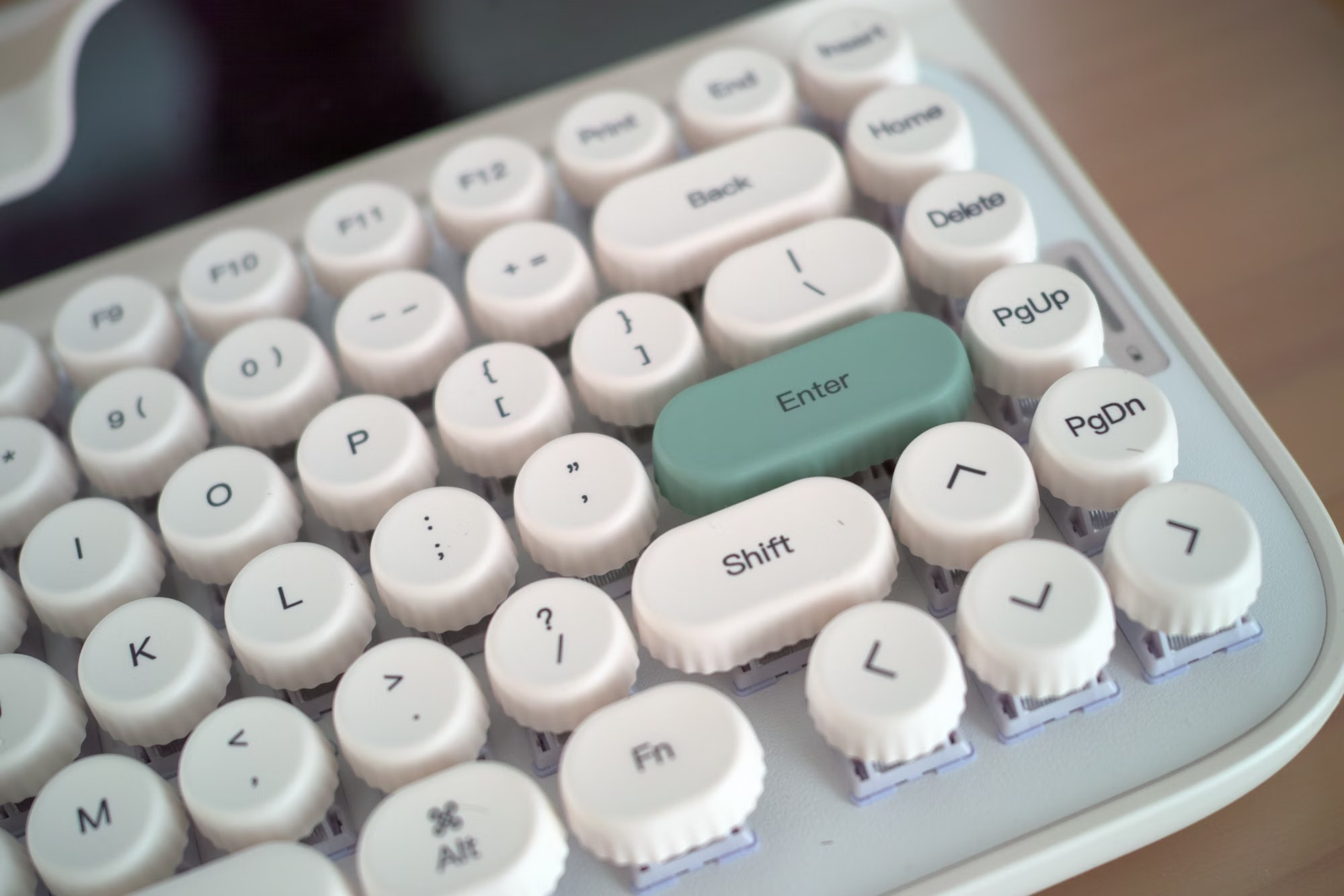
This means that your fingers are extremely comfortable resting on the keyboard: the additional depth makes your fingertips go towards the center of each key when you press, which has two benefits:
- better tacticle precision and feedback
- less impactful when typing.
Removing keycaps is fairly easy, more so that on many mechanical keyboards because the keycaps are somewhat elevated and easy to access. See for yourself.
No need for tutorials here.
Screens
Besides the regular keys, you get two screens: one for the date, and one for the time, and more indicators related to what your keyboard is currently doing. The calendar one is, I believe, not a LCD, but a long digital display with a limited amount of pixels (and fairly low energy consumption). I’m not sure it is super useful. It feels like a little gimmicky.
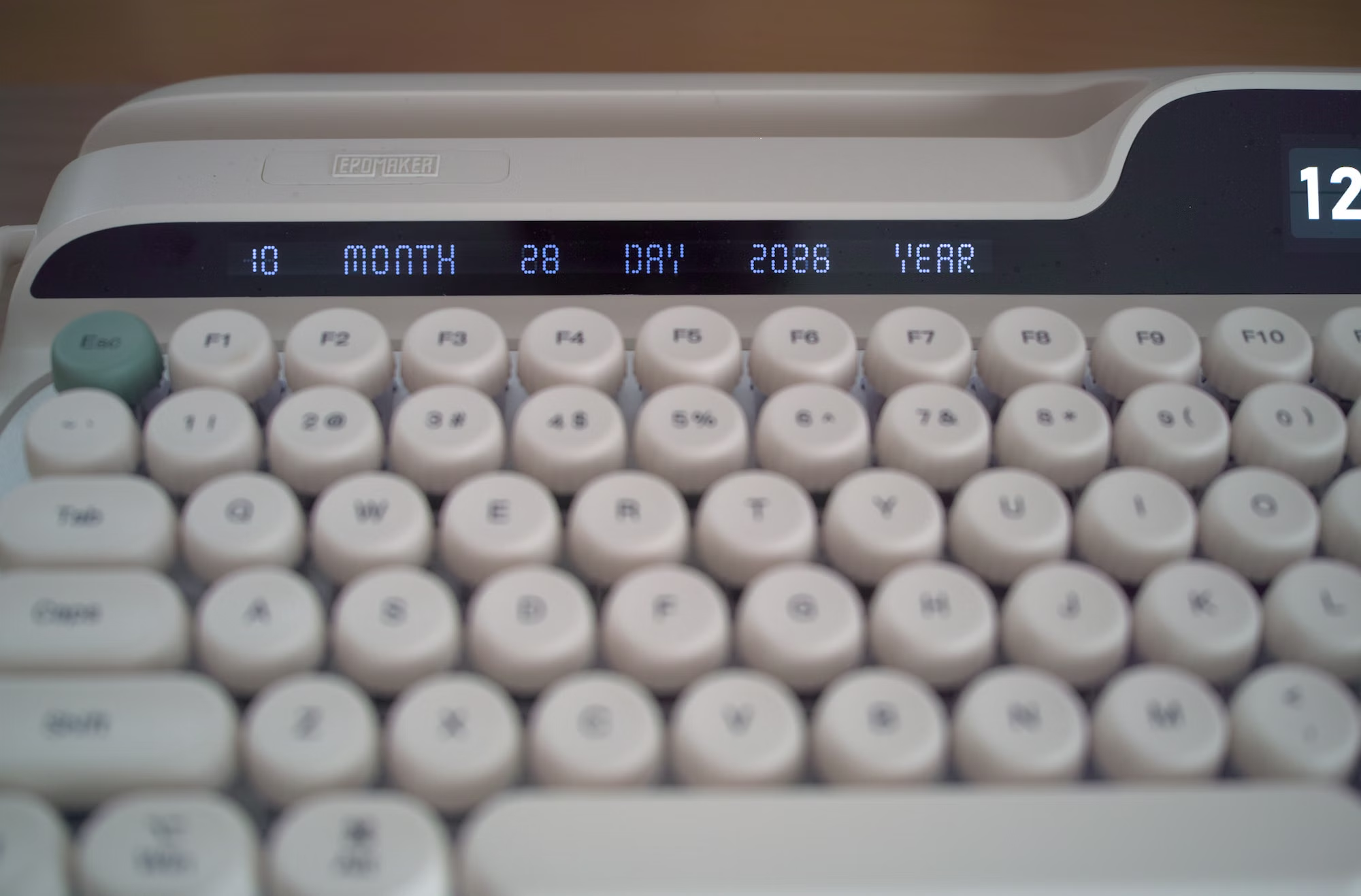
The main screen acts as a status screen that also gives you the time. It shows how the keyboard is connected to the keyboard, and in case you are using several Bluetooth presets, which preset is currently activated, which is fairly useful if you are using several machines with the same keyboard.
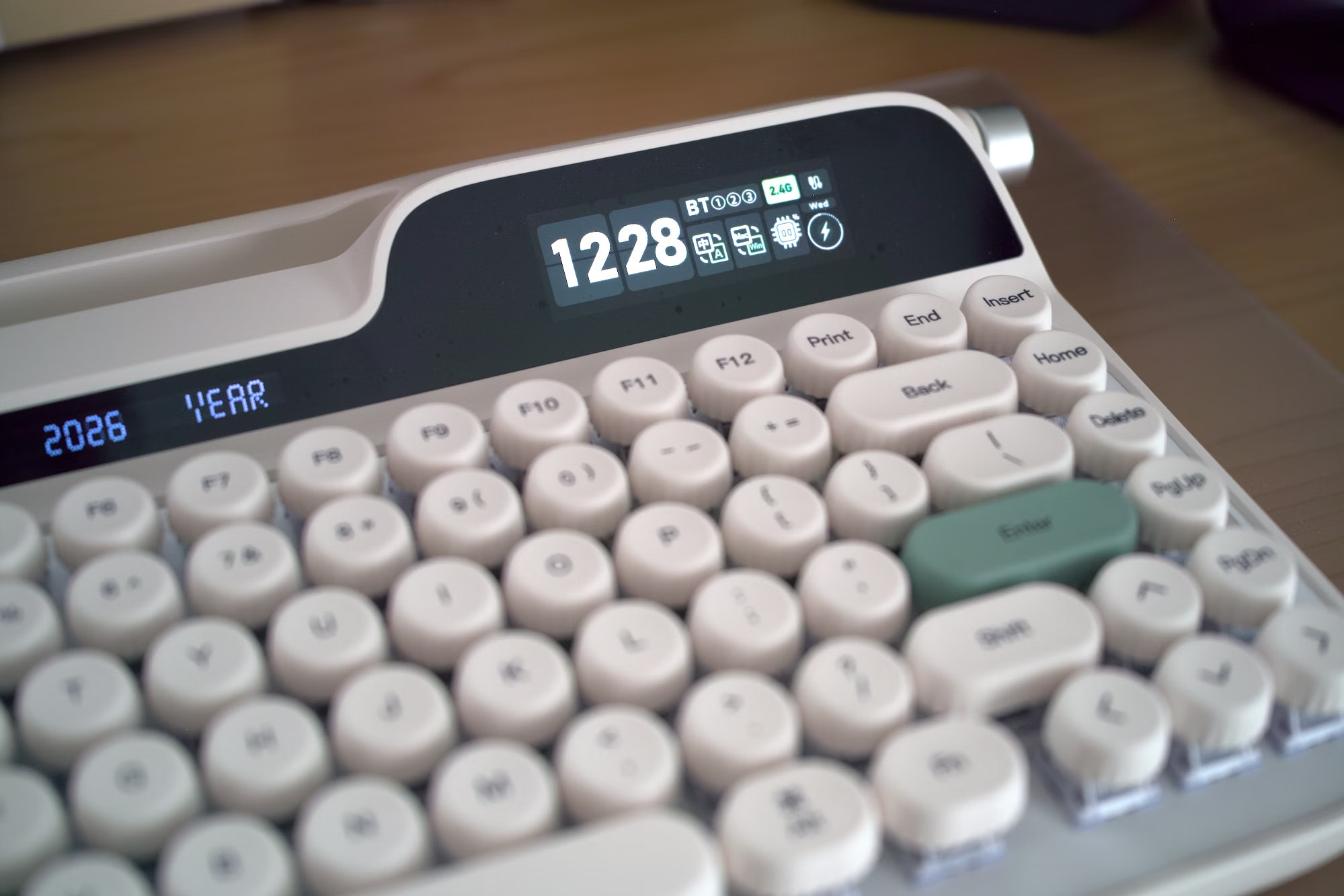
It also shows is you are using Chinese or English settings, Windows or Mac, and the battery percentage. It’s useful to display the time, since you don’t have to move you eyes too far from your keys to check it as you are typing. The information displayed could probably be a bit more dense, or feature different themes, but the default is pleasing. To be honest since it’s mostly used for status indicators this screen could be smaller or replaced by status LEDs, but it’s part of the Glyph design and justifies the asymetric shape on the right side of the unit.
Typing Experience
The switches are the Epomaker Wisteria V2 Switches. They are apparently manufactured by BSUN (Yeezi/BSUN Technology), a well-known Chinese switch OEM known for producing popular switches for brands like Yeezi, Mengmod, and various custom keyboard makers.
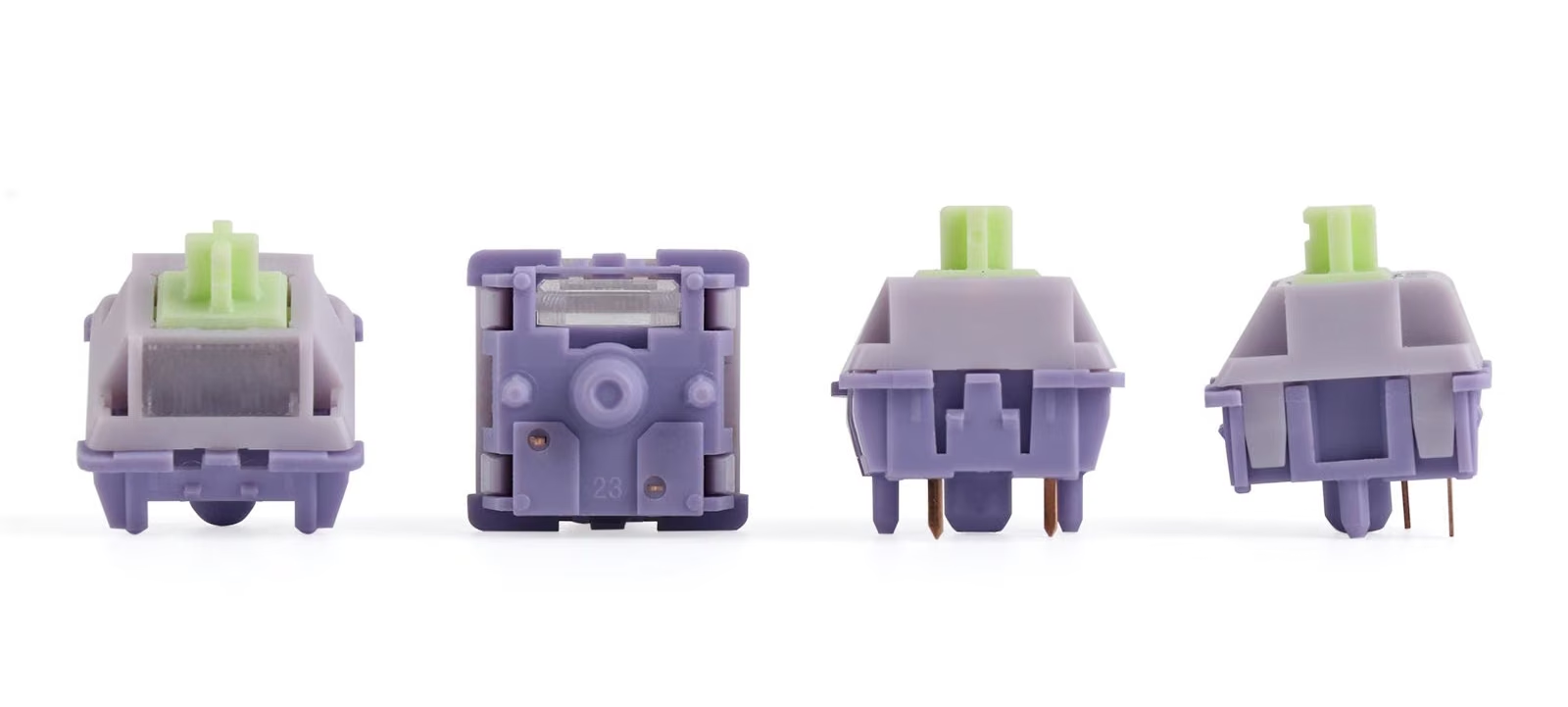
While they are manufactured by an OEM, the specs and the design of the switches are chosen by EPOMAKER, according to their needs. So this is not really off-the-shelf switches. Here are their characterstics below.
| Specification | Details |
|---|---|
| Switch Type | Linear |
| Pin Configuration | 5-Pin |
| Spring Length | 20.5 mm |
| Initial Force | 32.8g ± 5gf |
| Operation Force | 38g ± 5gf |
| Bottom-Out Force | 45g ± 5gf |
| Pre-Travel | 2.0 mm ± 0.4 mm |
| Total Travel | 3.6 mm ± 0.4 mm |
| Lifespan | 50 million keystrokes |
As you can see from the specs, the operation force of 38g and bottom-out force of 45g places such switches in the “ultra-light linear” category.
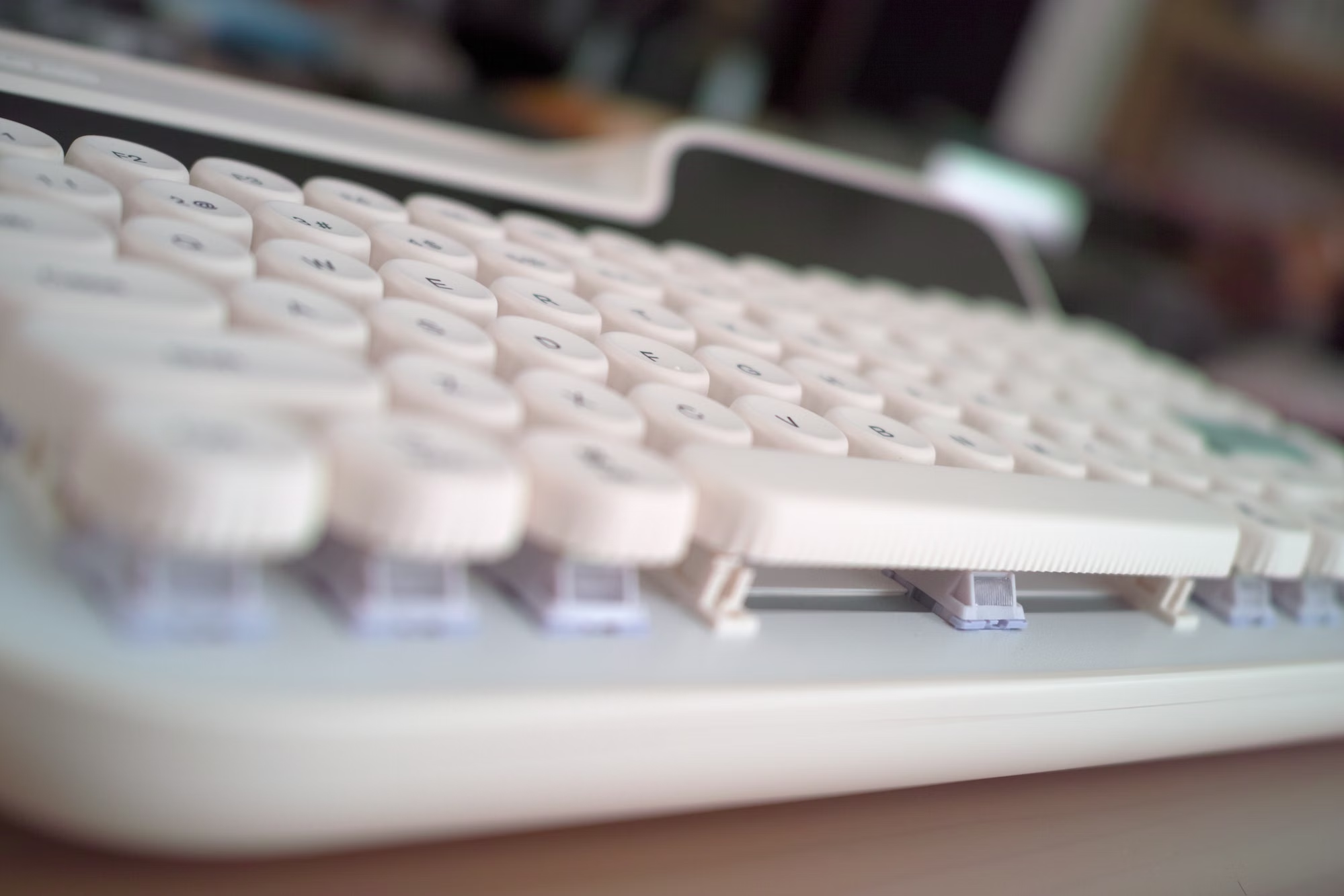
Because the force gap between initial press (32.8g), actuation (38g), and bottom-out (45g) is only ~12g, the stroke feels effortless and uniform from top to bottom. It is a perfect fit for rapid multi-key inputs, or people who have a very light touch. If you are heavy handed you will need to get used to it to avoid some accidental keystrokes.
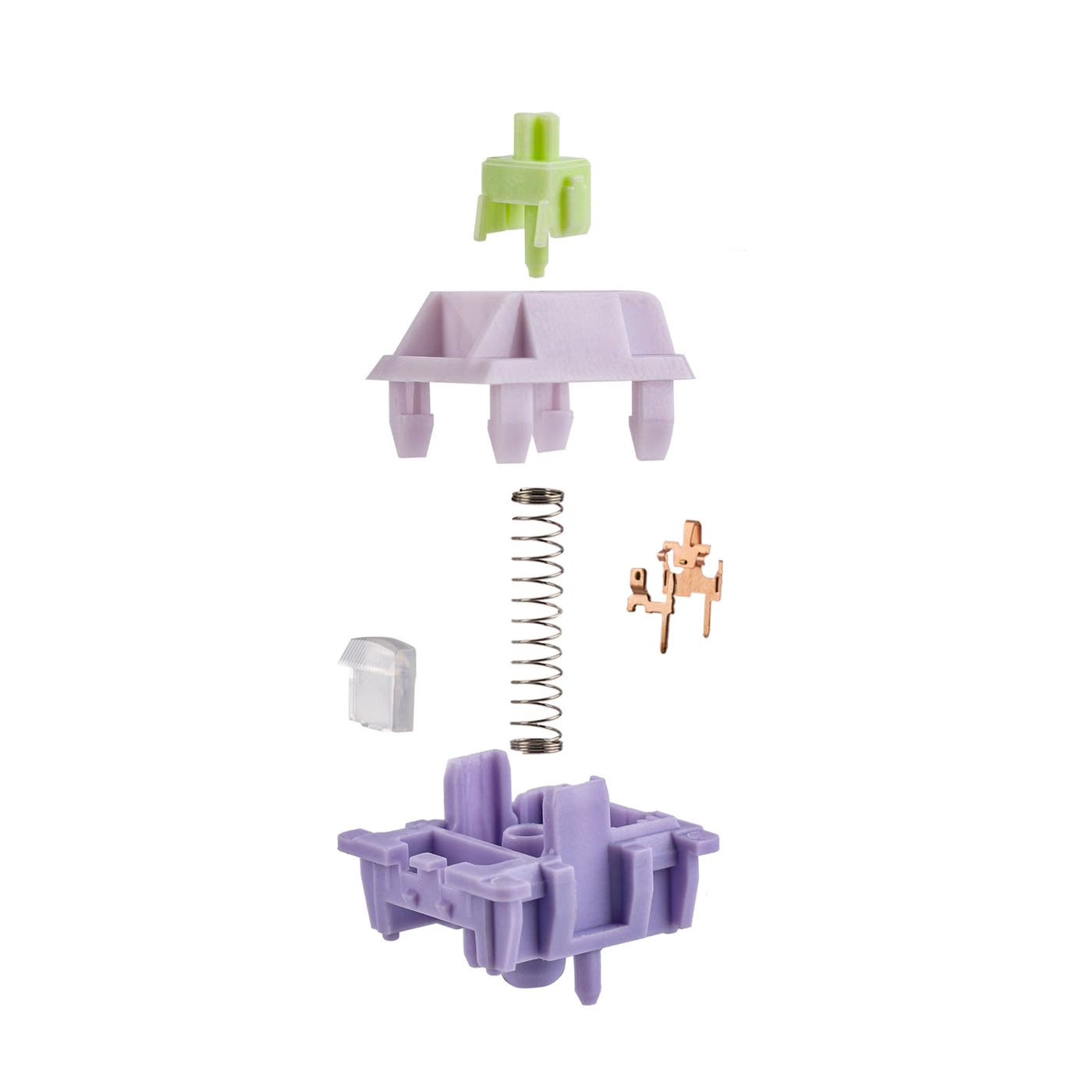
Keys have a snappy return. A lot of mechanical switch springs range between 14 mm and 16 mm. The wisteria switches are very long at 20.5 mm, making the key return very fast and responsive. In turn this means you can type even faster than you would on other keyboards, if your speed demands it.
Typing is extremely comfortable on the Glyph. The switches are (type) and while it took me a little while to get used to the layout compared to my regular Keychron keyboard, I managed to type fairly fast after a week of use. Not only is the keypress pleasant, the sound it produces is soft as well, and matches its appearance perfectly.
According to Nitrotype, my typing speed is between 70 and 80 wpm which is around my usual top speed.
The sound is fairly consistent across keys as well, at least the ones at the middle of the keyboard, there’s no key that goes chonk. There are obvious differences between the larger keys are the smaller ones. The backspace is louder, just as Shift and Enter. These three make a distinct sound and you can actually recognize which one is pressed blindfolded. The keys on the outside like Home, Delete, Page Up and Page Down have a lighter sound. The space bar makes some more noise but it’s more subtle than the wider keys like Shift and Enter, probably because the sound has more volume to propagate.
The space bar is sometimes a weakness on large keyboards because of the lack of sufficient side support. I know hat I have got rid of keyboards just because of spacebar problems. Nothing to worry about here with the Glyph, as the spacebar is adequately supported by 1 switch and 2 guides on each tip, making is very stable and consistent whether you press it on the sides or its center.
There is no clear resonance coming from the shell itself. All you hear are the keypresses.
Additional controls
There are two additional controls beyond the keys on the Glyph:
- The rotating knob on the right
- The small hand lever on the left side.
The knob is very useful. I have never had one a keyboard, and it’s actually a perfect way to control the sound of your computer quickly. It can click as well, and you can use the click ot play/pause media.
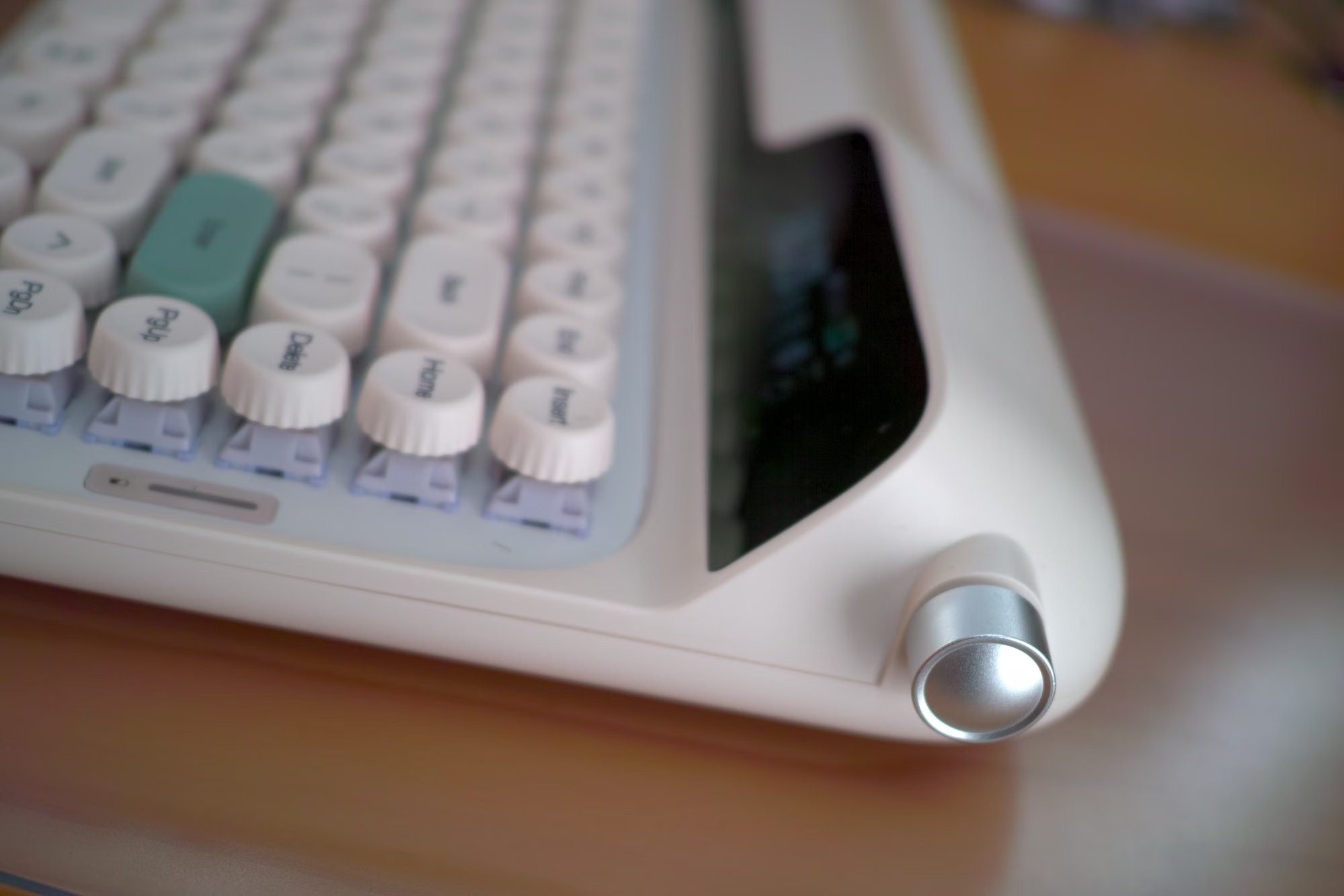
For volume control, I have several ways of doing it on my desktop (be it a remote control for the amplifier, keyboard shortcuts, or my little Stream Deck) and the knob is by far the fastest and most practical one to get exactly the sound level I want quickly. With the Glyph I use it all the time. Great addition. It can be customized in the software settings (more on that later), so you could easily change its role to replace the mouse scrolling wheel for example.
The left side lever is more of a gimmick. I don’t find myself using it much because the RETURN key is faster to access, and I am much more used to hit the backspace than developing some new kind of muscle memory to use that lever instead.
RGB lights
I’m probably not the biggest fan or RGB lights. I have never really felt the need to have it on a keyboard, while it looks nice when you do product demos. This being said the Epomaker Glyph gives you a ton of options on how to set the RGB lights on your keyboard. You have a bunch of presets directly available from keyboaard shortcut to make it easy to cycle between the.
But the real meat is in the custom settings where you can actually have a very fine-grained control of every color at every key! It’s a pretty cool feature. You can decide to only light up keys that are used for your favorite games for example.
The main issue is that they keycaps are opaque and do not transmit any light coming from below, so you don’t get to see the “A” glyph on the A key light up when the RGB LED below is activated. When you are in the dark it does not really help to identify which key is which because of that. Such a feature would require a different design and keycap material.
Software support
There is no VIA/QMK support for this keyboard.
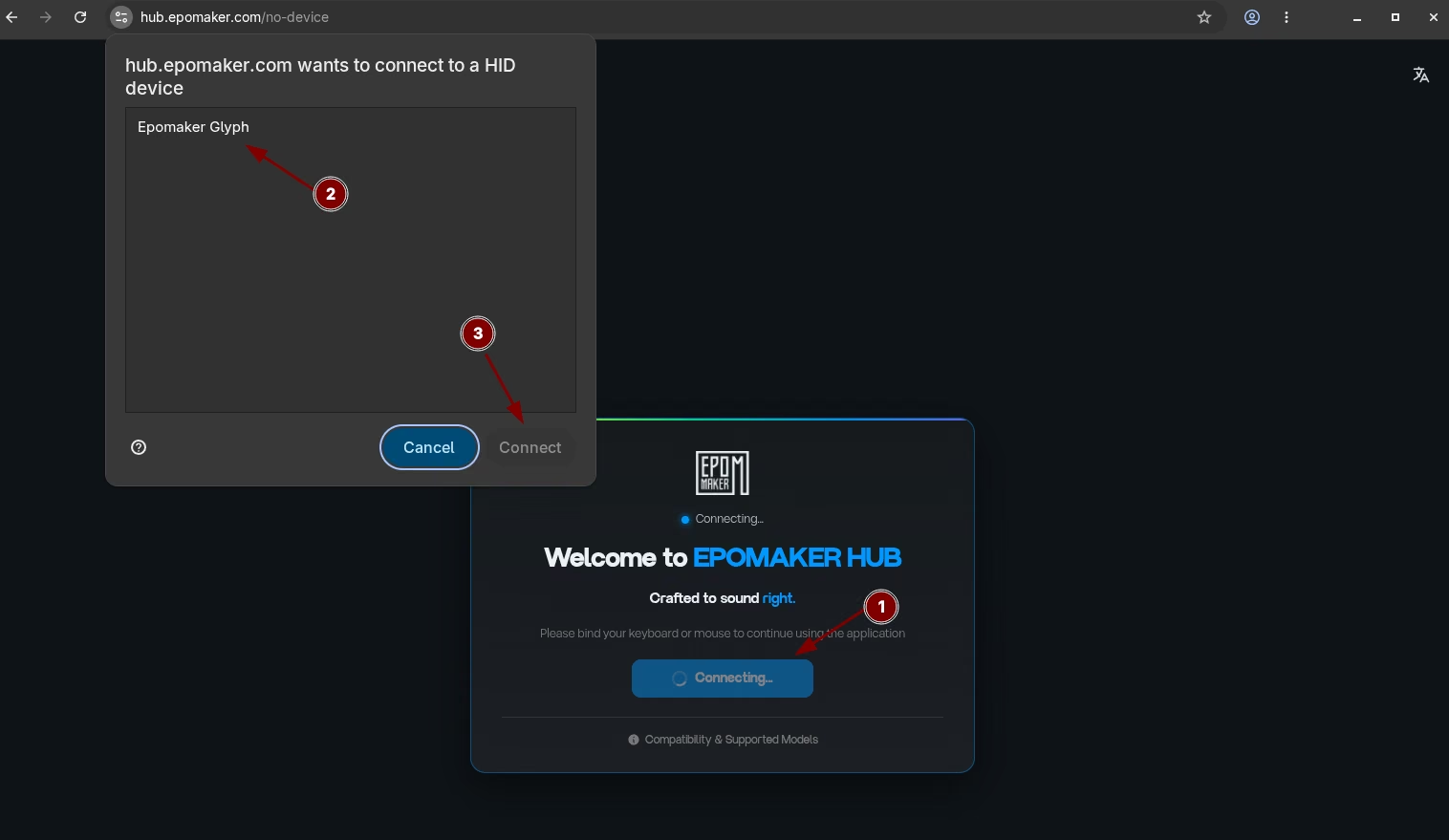
This is where the official support is somewhat limited on Linux, but it’s not really a huge problem at the same time. You just need to connect the keyboard with the USB cable in order to be able to modify the settings directly from the browser. Note that this works only of Chrome or Chromium based browsers, Firefox does not support this right now.
From the configurator you can do many things such as remapping keys, defining macros that could be assigned to single keys.
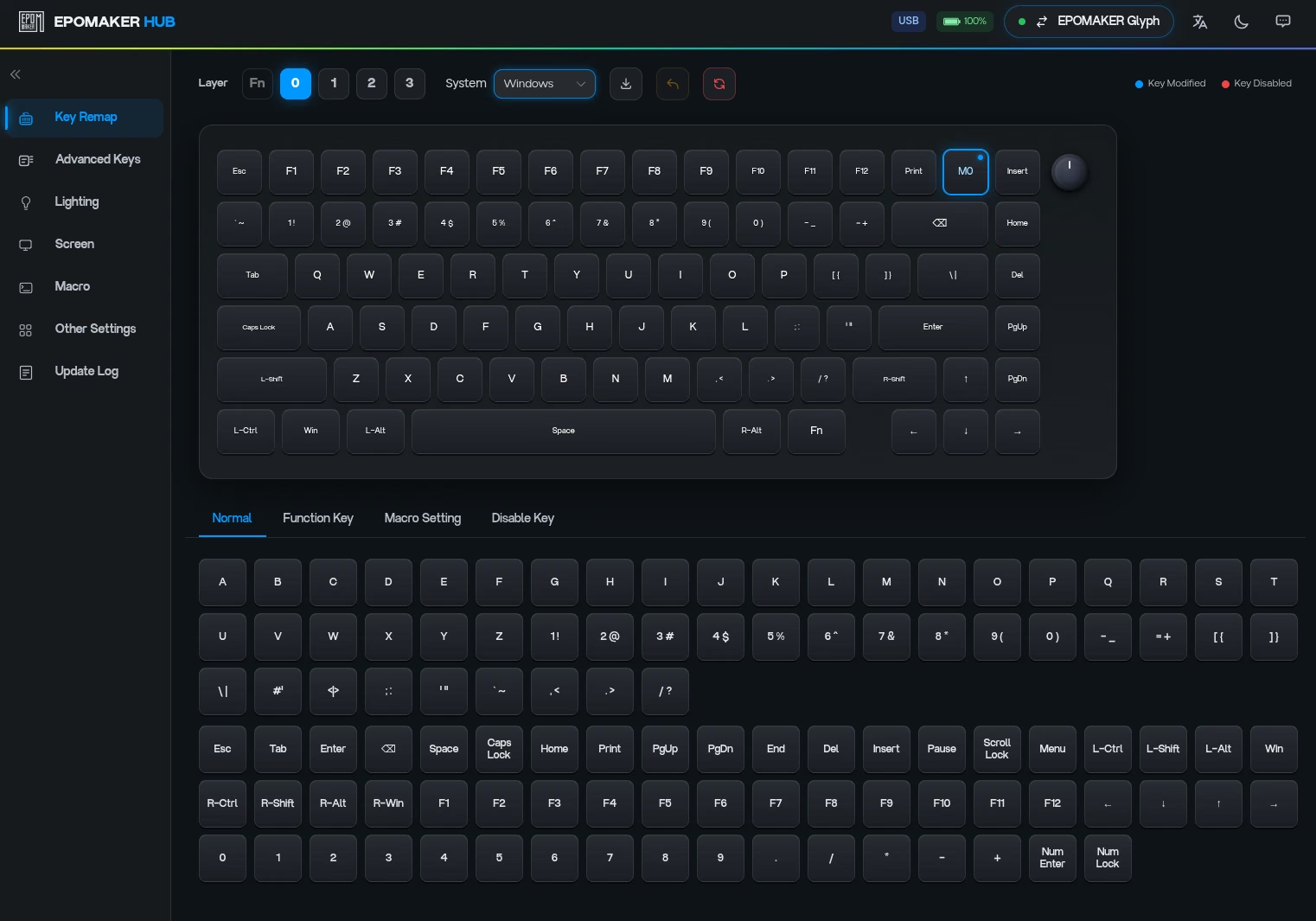
I have a macro for example that binds the End key (that I never use) to the system emoji picker on GNOME (that I use often) via its CTRL + . shortcut. More on the macro editor in the below video.
There is also a different mode to create a key combo, where 3 keys can be pressed at the same time on a single keypress. The tool to set this up is well designed and intuitive.
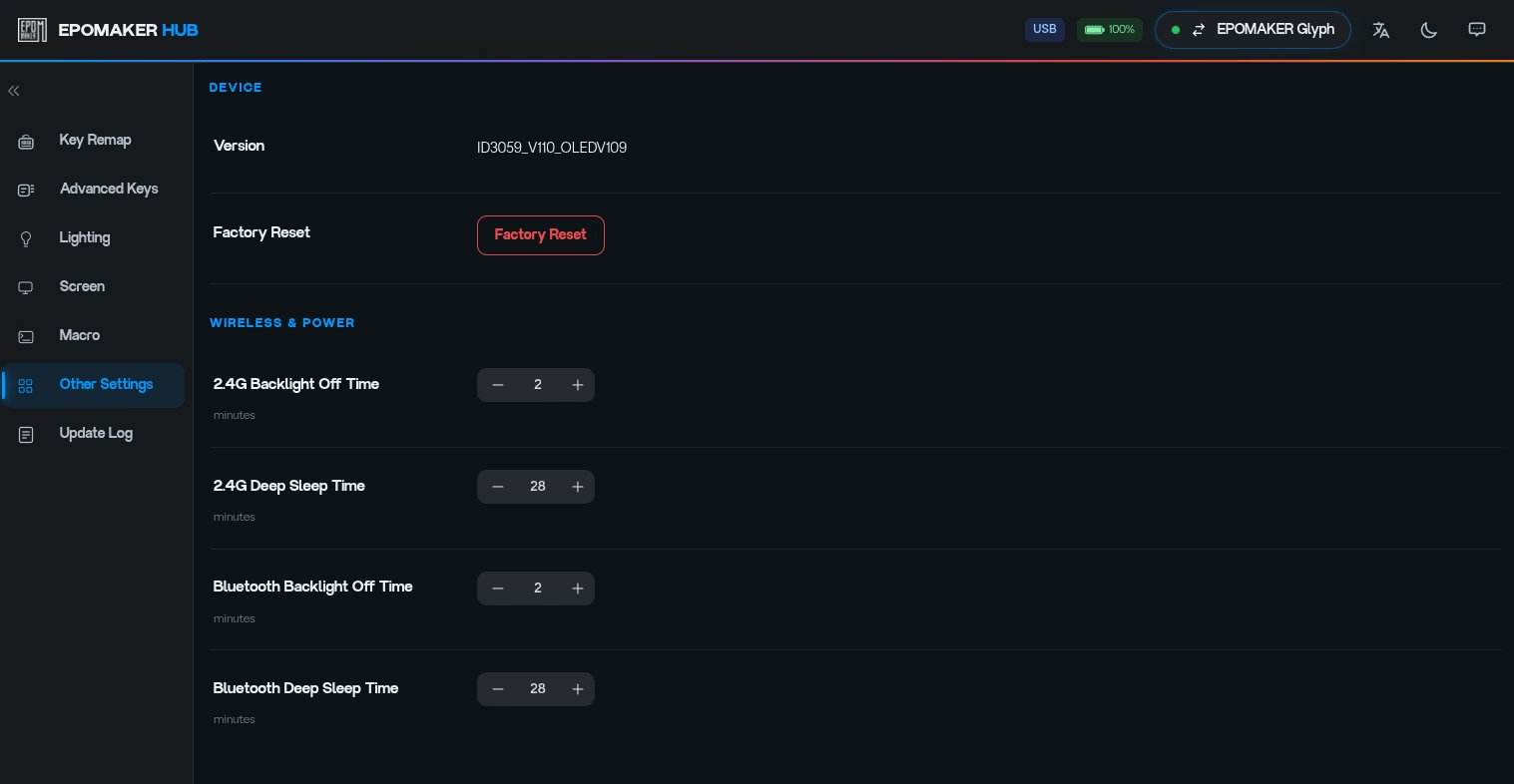
You can also set the sleep for the wireless functions of the keyboard, and have separate settings for Bluetooth and 2.4Ghz which is very nice.
You can also modify what the screen displays by changing the small screen by a static image or an animation (that you draw frame by frame if you are feeling like a pixel artist! or through a gif import). Importing a gif works well but it takes a fairly long time to upload it to the device, even for a gif that only has like a few dozen animation steps.
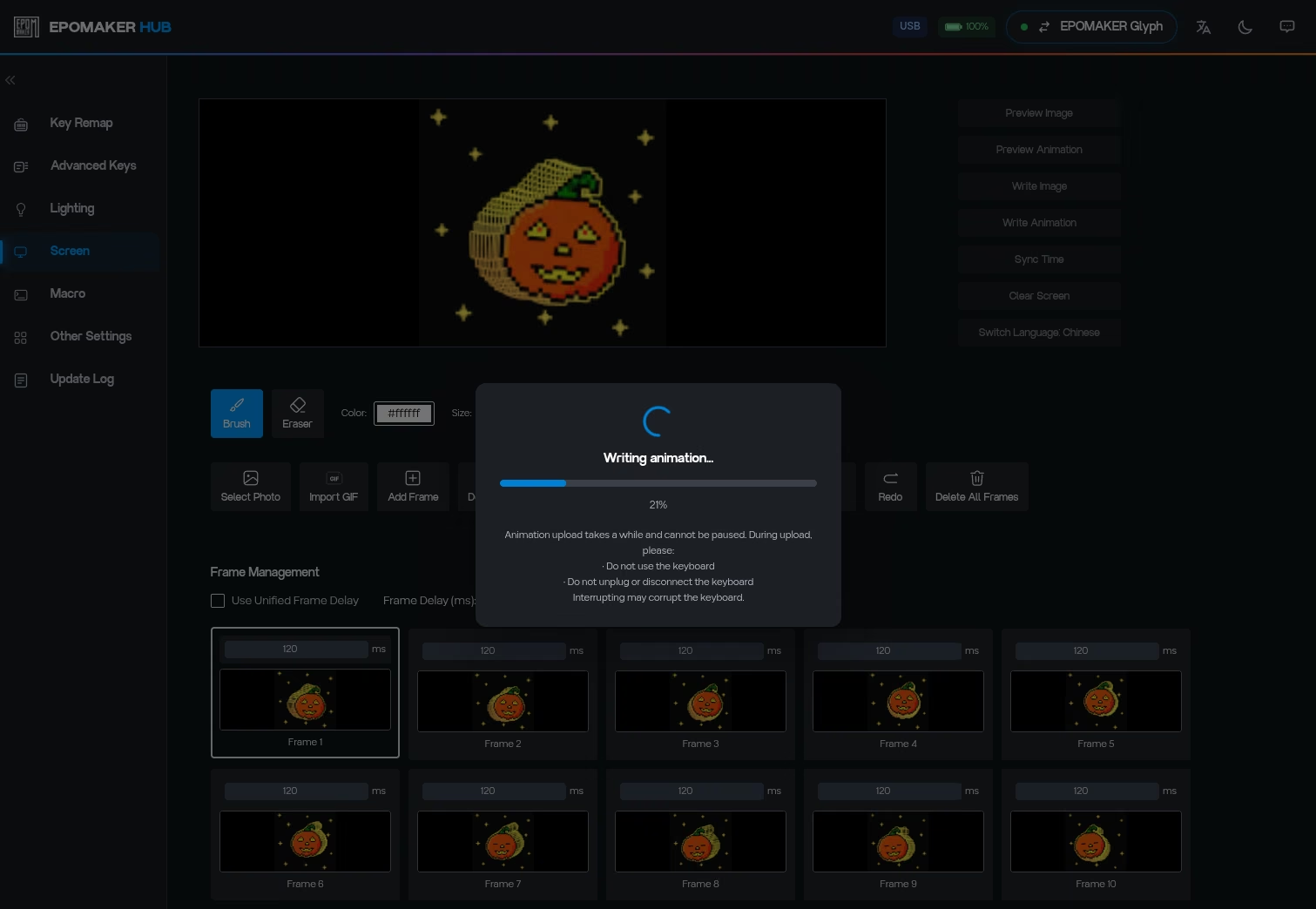
I kind of wish the keyboard screen had more options for configuration, such as mixing a static image with the time, or an animation that only loops under certain conditions. There’s probably a lot of opportunity to go crazy once you have a screen available, and I feel we are barely scratching the surface here.
The software feels very capable and featureful for all typical, keyboard-related functions. When it comes to the screen and display, it’s somewhat immature.
By the way, leaving a note here regarding the possibility of configuring the keyboard wirelessly. When using the 2.4 Ghz dongle, I tried to spoof the wired connection in the browser console so that the Epomaker Hub would believe it is connected via USB. The good thing is that spoof works somewhat to make the keyboard visible to the web app: but the connection fails as the dongle does not parse the config and simply returns keystroke information. There is not much we can do as the dongle is proprietary.
(() => {
  const DONGLE = { vendorId: 0x3151, productId: 0x5006 };
  const WIRED  = {
    vendorId: 0x3151,
    productId: 0x5002,
    productName: 'Epomaker Glyph'
  };

  function wrap(dev) {
    if (!dev) return dev;
    if (dev.vendorId !== DONGLE.vendorId || dev.productId !== DONGLE.productId) {
      return dev;
    }

    return new Proxy(dev, {
      get(target, prop, receiver) {
        // Intercept the identity properties
        if (prop === 'vendorId')    return WIRED.vendorId;
        if (prop === 'productId')   return WIRED.productId;
        if (prop === 'productName') return WIRED.productName;

        // Change 'receiver' to 'target' here to fix the Illegal invocation error
        const value = Reflect.get(target, prop, target);

        // Bind functions to the real target so they have the correct 'this'
        return typeof value === 'function' ? value.bind(target) : value;
      },
      set(target, prop, value, receiver) {
        if (prop === 'vendorId' || prop === 'productId' || prop === 'productName') {
          return true;
        }
        // Change 'receiver' to 'target' here as well
        return Reflect.set(target, prop, value, target);
      }
    });
  }

  const hid = navigator.hid;
  const origRequest = hid.requestDevice.bind(hid);
  const origGet = hid.getDevices.bind(hid);

  hid.requestDevice = async (opts = {}) => {
    const filters = [
      ...(opts.filters || []),
      { vendorId: DONGLE.vendorId, productId: DONGLE.productId }
    ];
    const devices = await origRequest({ ...opts, filters });
    return devices.map(wrap);
  };

  hid.getDevices = async () => (await origGet()).map(wrap);

  console.log('Epomaker WebHID spoof installed successfully');
})();
At this stage the only hope for wireless on Linux would be for EPOMAKER to release a firmware update that enables the dongle to pass the keyboard configuration.
And on the bluetooth side, there is no hope, as WebHID is USB-only. The API only communicates with USB HID devices. It cannot see Bluetooth ones. In theory it is possible to reverse-engineer the BLE protocol that is used by the mobile devices, but that’s a massive effort in itself.
Room for Improvement
The one thing which would be great is to have keycaps that allow for some of the light to go through them, so that you could type in a dark environment.
On my wishlist: a black version of the keyboard, certainly. That’s a personal preference for the most part .All of my stuff on my computer is black, it would be a great match to have a black version of the Glyph keyboard.
The one thing where I would like some more customization is the inclination of the keyboard. You have some very slight leeway to adjust the height of the keyboard in the back, by turning some of the silicon supports onto either side with a different depth, but even with the highest one, it still feels very flat on your table. You will find it a little hard on your wrists unless you use the silicon hand rest provided (which is great too, by the way, but takes some more space).
There is also no visible way to open the bottom plate. I am guessing the chassis is glued. Not a problem right now, but if the battery fails down the road it looks like doing the maintenance yourself is going to be pretty difficult. Worst case, if the battery fails, is that you can still use the keyboard in wired mode. The battery is fairly large for a keyboard at 8000 mAh which means that it should easily last for years, as the number of recharge cycles are not going to be nearly as frequent as what you get on a smartphone for example. In my few weeks of experience I did not have to recharge the battery, so I have no idea how long it actually lasts. But I seriously doubt it would be a major concern. On my regular Keychron, a single charge easily last 3 weeks before I get some battery warning, so I would assume Glyph falls into the same range.
Also the obvious aspect linked to the color scheme is that it’s much more visible on a white surface when you have stains or dirt, so you need to actively take care of if for it to stay presentable. If you ask me, that’s probably a good thing.
Verdict
I have had a bunch of mechanical keyboards up until now, and this is one of the best and most comfortable that I have had in hands. I think there are three selling points that stand out:
- It looks great. I like how curvy and asymetric it is. Let’s not kid ourselves, most mechanical keyboards are made to be very functional and practical, but very few are made to be beautiful. The Glyph does exactly that, with its unusual shape, design and color. I knew that I felt very attracted to it the moment I saw it at the TGS. It clearly stood out among all the other keyboards out there.
- It sounds great. You have a wide range of mechanical keyboards out there, and depending on the switch, the chassis, the keycaps and all, you will get different sound when you type. I like my Keychron and I am used to it, but when I compare both side to side, the Glyph has a much nicer sound, much more pleasing to my ears. This is clearly designed this way and this is a perfect match with the apperance of the keyboard. If you are typing next to other people, they will thank you.
- Excellent typing experience. You can type very fast with it and it feels just right. I need to adjust a bit of my muscle memory as the layout is slightly different from my other keyboards.
So you get a great default experience from the get go. From there, you have a large amount of customization especially on the software side of things - of the keycaps for that matter.
On Linux (tested on Arch and Fedora), pretty much everything works as expected, expect keyboard customization when in wireless mode. For this, you’ll need to connect your keyboard to USB, which may be a pain in the ass in case you like changing configuration several times a day while staying in wireless mode. There are bunch of keyboard shortcuts you are use without relying on the the configuration to do mundane stuff, at least.
Availability
There is just a single version of this keyboard as stated before. Don’t expect to be able to choose from different colors of themes. It’s a little bit of a shame, I would really like to see a black variant of this keyboard, while I admit the current creamy version is very stylish and alluring. It will fit perfectly with PC users who have gone all white when it comes to their case, motherboard, GPU and peripherals.
While the chassis is given, you can customize many things about it: the switches can all be removed and replaced as they use standard MX format, wither 3 or 5 pins. And then you can also go for different keycaps that fit the MX stem mounts. That gives you a wide range to customize the keyboard partly or fully depending on how far you want to go.
You can get it from different retailers - on Amazon in the US it’s at 125 USD, which is in the medium range for mechanical keyboards prices. If you are into mechanical keyboards at least this is not something that feels outrageously expensive. You can also find out more on their official website.
Overall, an excellent keyboard.
Stay tuned as we have a few more keyboard reviews coming up.
Note: we received a sample from Epomaker to conduct this review.